


Welcome to TypingMind!
As you may know, TypingMind provides a better ChatGPT UI but… it doesn’t seem abundantly clear, right?
In this article, we will walk you through what TypingMind exactly is, a step-by-step to get started and some essential resources that help you make the most out of TypingMind.
Now, let’s dive in!
What is TypingMind?
With TypingMind, you can harness the full potential of ChatGPT and other AI models to get into the possibilities that are yet to explore. This includes:
- Better way to manage your chats by folders.
- More customization options to fine-tune the AI response (prompt and character library, web search, integrations, and more plugins)
- Chances to train the AI model with your own data.
- Handle more complex conversations with FAST and HIGH-QUALITY output.
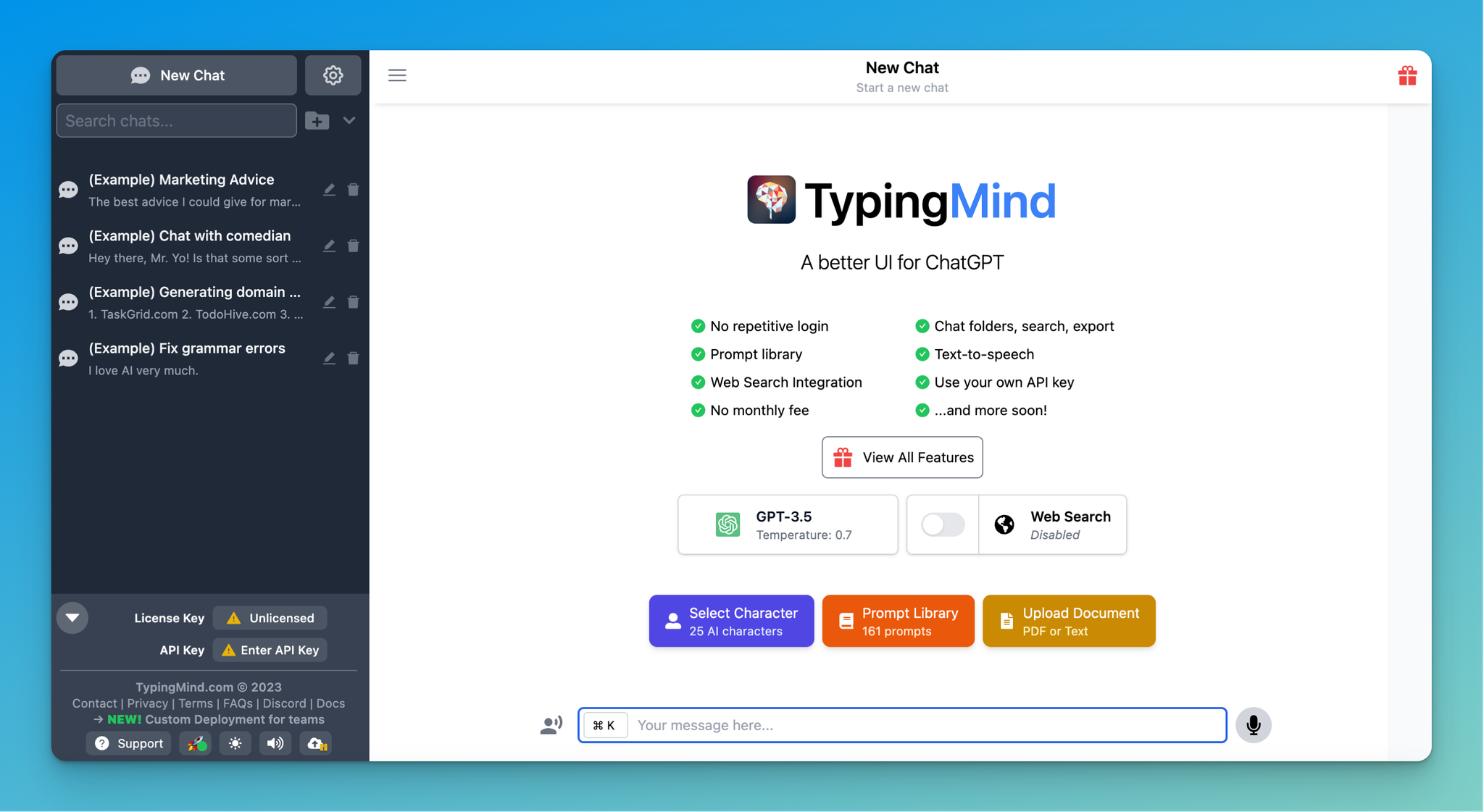
With nearly 10 AI chat models, and over 180 ChatGPT prompts & AI characters, TypingMind is all set to streamline your workflow and take manual work off your plate!
Step-by-step to use TypingMind
Here are 5 easy steps to get started with TypingMind.
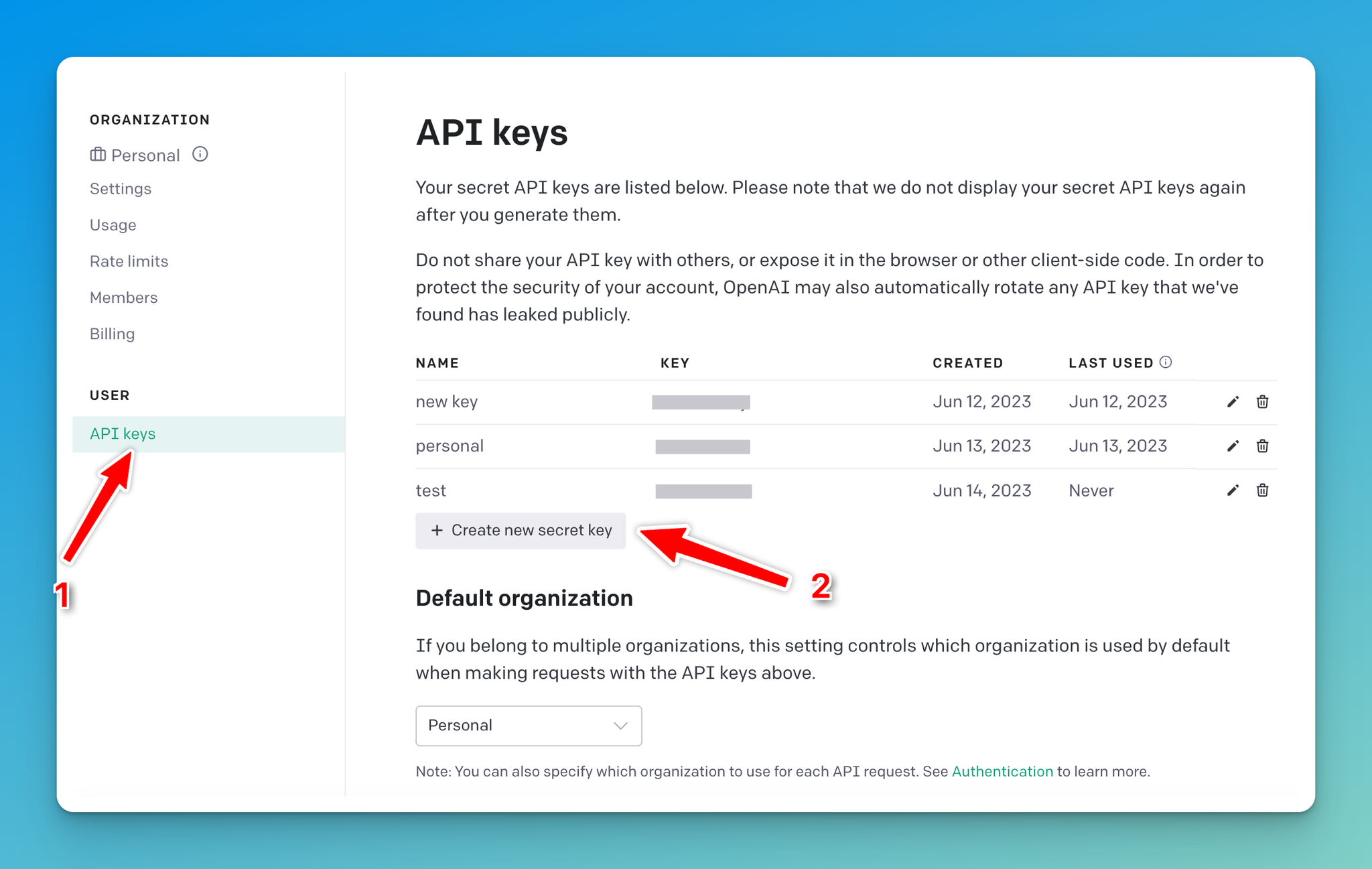
Step 1: Set up your OpenAI API key
You will need to have an OpenAI API Key to use TypingMind.
- To get the API key, please sign up for an OpenAI account at platform.openai.com/signup
- Then head over to the “Manage Account” section, locate the “API keys” area, and generate your API keys. Once done, copy these keys and insert them into TypingMind.
Step 2: Start your first conversation
To begin a conversation, you need to provide instructions to the AI assistant. You can do this in three ways:
1. Direct Interaction: the most basic way to start with TypingMind. Enter any questions or prompts that you have in mind or select from the prompt library and the AI assistant will respond accordingly.
— For example: “What is the capital of France?” and the AI will respond with “The capital of France is Paris.”

2. Setup with background information: this allows you to set up an initial request or background data, and will be useful for more complex tasks or when you want the AI to work within a particular context. It can be done by:
- Create a system initial instruction that provides detailed guidelines and context on what the bot should do during the conversation. — For example, you can set up a FAQ bot with your preset questions and answers.

- Train the AI with your own document so it can review and provide answers related to your queries. — For example, you could select the “Graphic Designer” character to ask for something related to graphic design ideas.

3. Make the AI role-play: this is an exciting way of interacting with TypingMind – set it up to play a specific role or character that expertises in a specific area.

At this point, enabling Web search (ChatGPT Internet Access) can be beneficial as it provides the most recent, accurate, and context-relevant replies, which is especially useful for inquiries that require current data.
Step 3: Organize your workspace
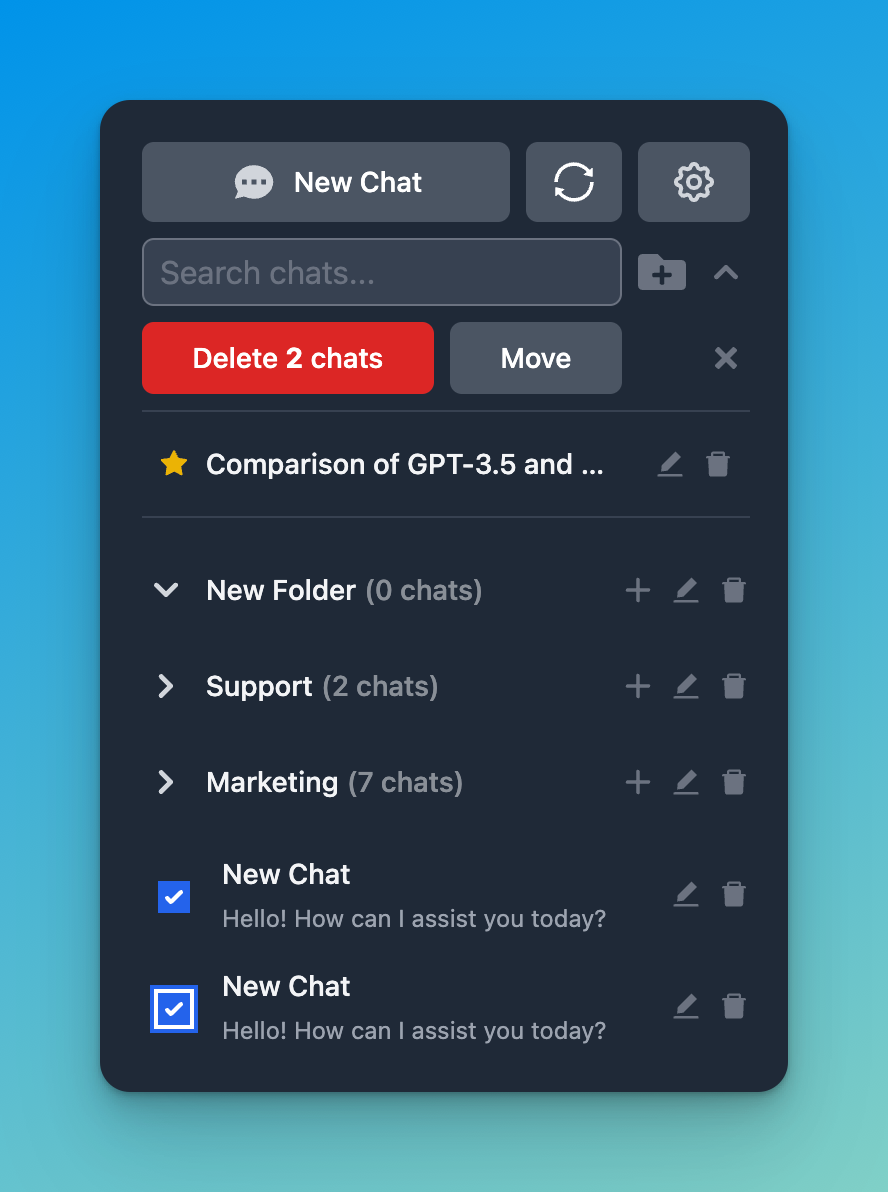
The left sidebar will show up all of your chat history, you can easily drag and drop your chats into a folder, pin them to the top or delete them for better management and navigation later.
Step 4: Share your chats with everyone
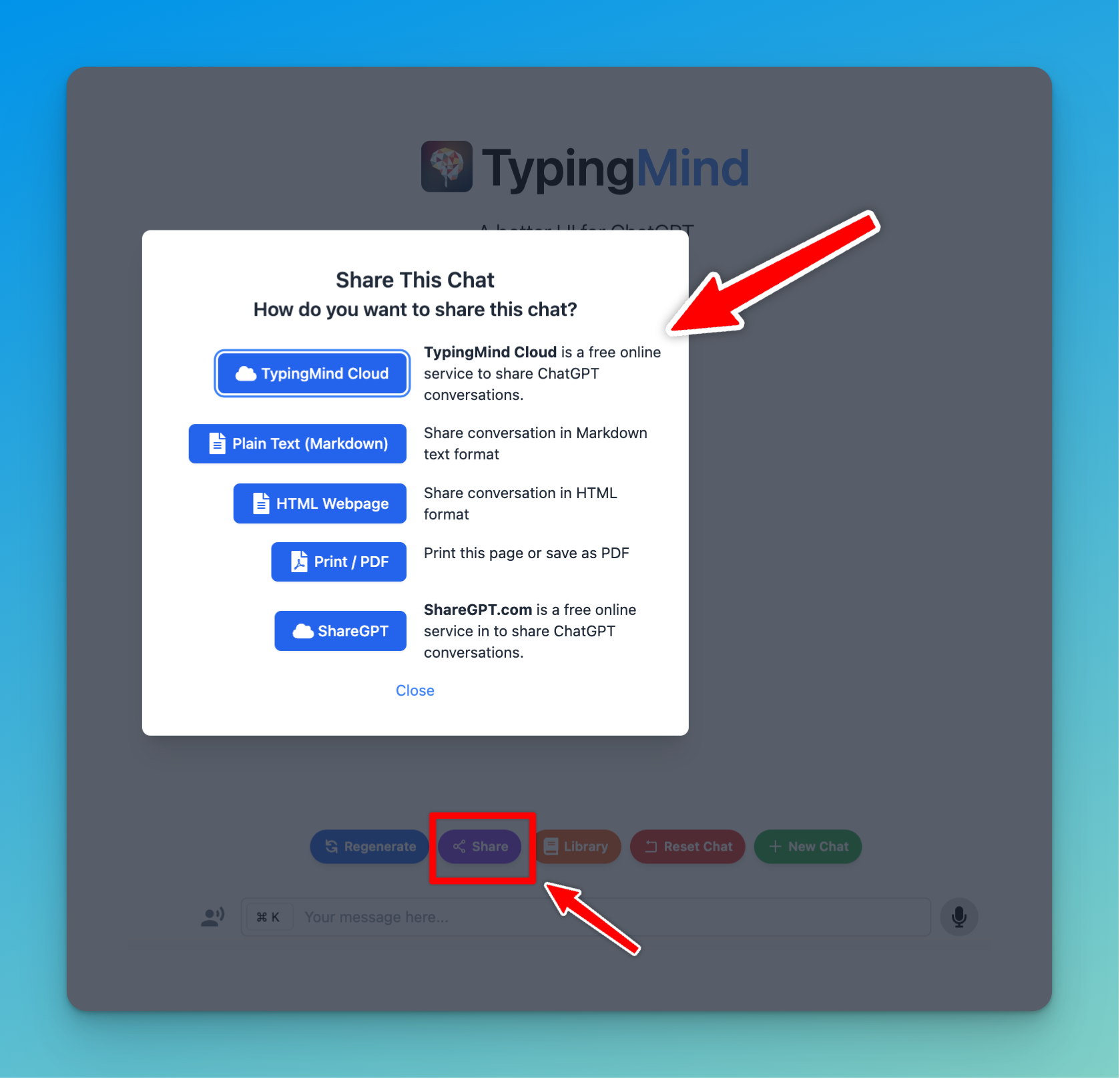
Share your chats with ease to help others learn from you, improve your prompts for better results, or pick up where you left off.
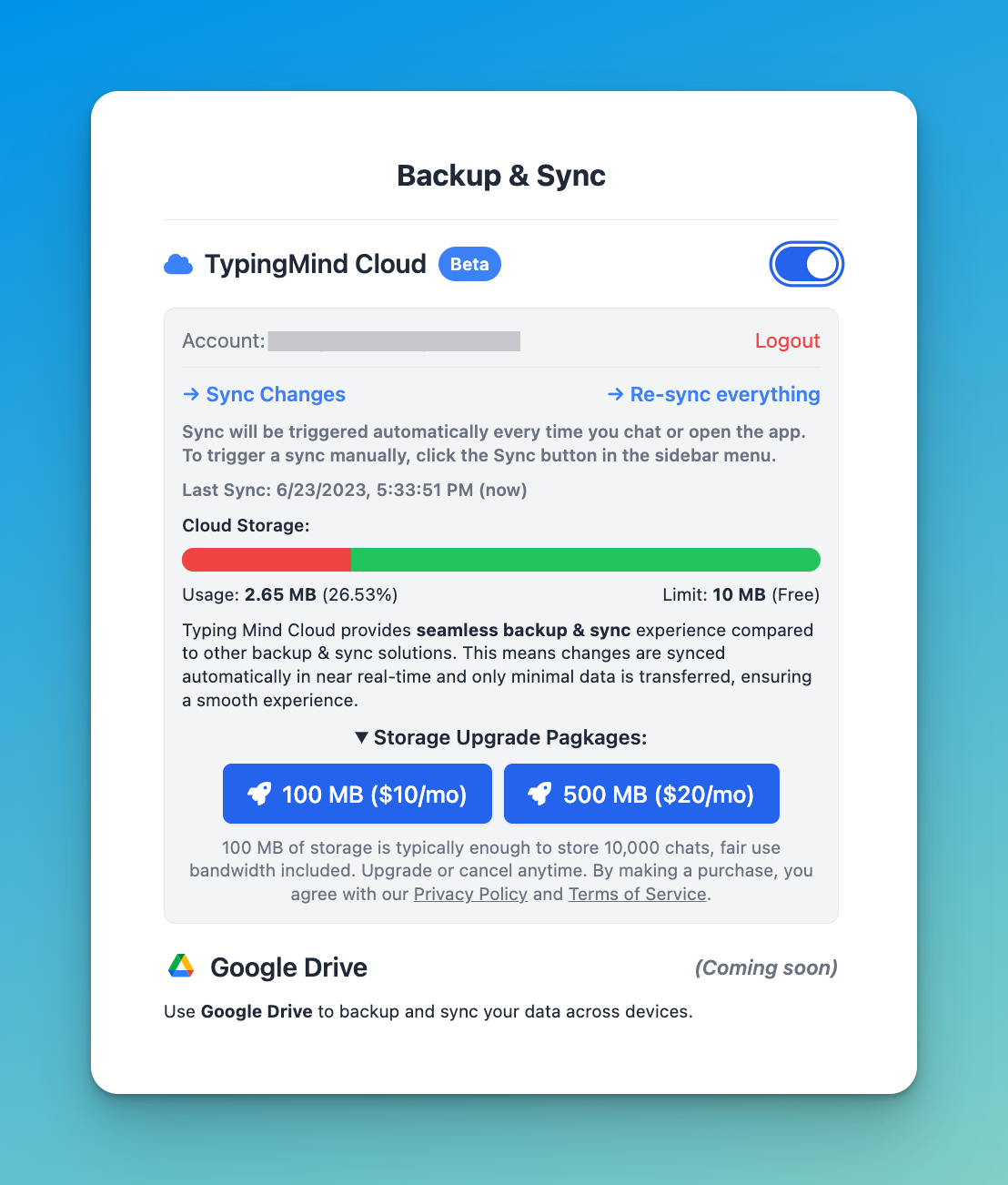
Step 5: Backup & Sync your data
Turn on the TypingMind cloud to protect your data against potential loss due to some unexpected issues. This will not only secure your data but also allow for synchronization between devices.
Don’t miss out on these important resources!
Take advantage of these five TypingMind essential resources to maximize the value of the app.
1. Help documentation
This page includes:
- Detailed guidelines
- Full feature list to help you make the most out of TypingMind
- FAQs
- Regularly updated changelog that keeps you informed about the latest features and improvements.
Check it out: https://docs.typingmind.com/
2. Discord community
Connect with TypingMind community to share your experiences, participate in awesome discussions, and gain valuable knowledge from others.
Join now: https://www.typingmind.com/discord
3. Social channels
Follow us on our social media platforms for quick updates, tips, community stories, and more
4. Support channel
For any query or assistance, please send an email to support@typingmind.com. We’re here to support you round the clock!
5. Feedback portal
We highly value your feedback. Send us an email to feedback@typingmind.com to share your thoughts, suggestions, and ideas for improving TypingMind.
That’s a wrap!
TypingMind is a powerful tool that can take your experience with ChatGPT and other AI models to the next level. It offers unparalleled flexibility, allowing you to customize chat inputs and outputs to best suit your needs.
While the quick walk-through will help you develop some basic concepts about TypingMind, you can do even more than that.
Now, time to start your first conversation with TypingMind!


