


Automation is no longer just about connecting apps with a few triggers and actions. Today, businesses expect intelligent workflows that can think, adapt, and help make decisions.
This guide will help you build that kind of advanced workflows – automatically within a few clicks, with TypingMind + n8n MCP.
Let’s check out why pairing TypingMind with n8n MCP changes the way you design automations.
Note: TypingMind won’t run your n8n workflows — but it can make creating and managing them much easier within the app.
First Things First: What Is MCP?
Let’s strip away the jargon.
MCP (Model Context Protocol) is an open protocol created by Anthropic. Think of it as a universal translator between AI models and external tools. Instead of hand-coding custom integrations, MCP gives AI a standardized way to discover what tools exist, what they can do, and how to use them.
A few key ideas:
- Clients and Servers: The AI app (like TypingMind) acts as the MCP client. Tools and services (like n8n or a file system) act as MCP servers.
- Discovery: The AI doesn’t need to guess. MCP servers advertise their capabilities (tools, resources, schemas), so the AI can see exactly what’s available.
- Execution: Once discovered, the AI can call those tools — consistently and safely.
In short: MCP allows an AI to stop being just a text generator and start becoming an active collaborator with external systems.

What is TypingMind?
TypingMind.com is the best chat UI that help you harness the full potential of ChatGPT and other AI models so you can get the well-shaped AI responses that specifically tailor for your needs.
It offers advanced features such as multiple AI models conversation, chat management (Projects, Folders), plugin integrations, multiple AI agents, and fine-tuned controls for connecting external data and services. TypingMind allows deeper customization, including connecting to MCP servers like n8n.

Why integrating n8n MCP?
n8n is already known as a workflow automation powerhouse — you can chain together hundreds of integrations to build custom automations. But until recently, designing those workflows could be tedious. You had to drag nodes, configure parameters, and manually wire everything up.
With n8n MCP on TypingMind, that changes.
- n8n can expose its workflow-building capabilities as MCP servers.
- TypingMind (as an MCP client) can then help you create or configure workflows in n8n through natural language.
Instead of clicking around endlessly, you can simply tell TypingMind:
“Create a workflow that takes a new row from Google Sheets and sends me a Slack notification.”
TypingMind, via MCP, drafts that workflow for you inside n8n.
Set up n8n MCP on TypingMind: Step-by-step guide
Step 1: Set up MCP Connectors
In TypingMind, go to Settings → Advanced Settings → Model Context Protocol to start setup your MCP connector. The MCP Connector acts as the bridge between TypingMind and the MCP servers.
MCP servers require a server to run on. TypingMind allows you to connect to the MCP servers via:
- Your own local device
- Or a private remote server.

If you choose to run the MCP servers on your device, run the command displayed on the screen.
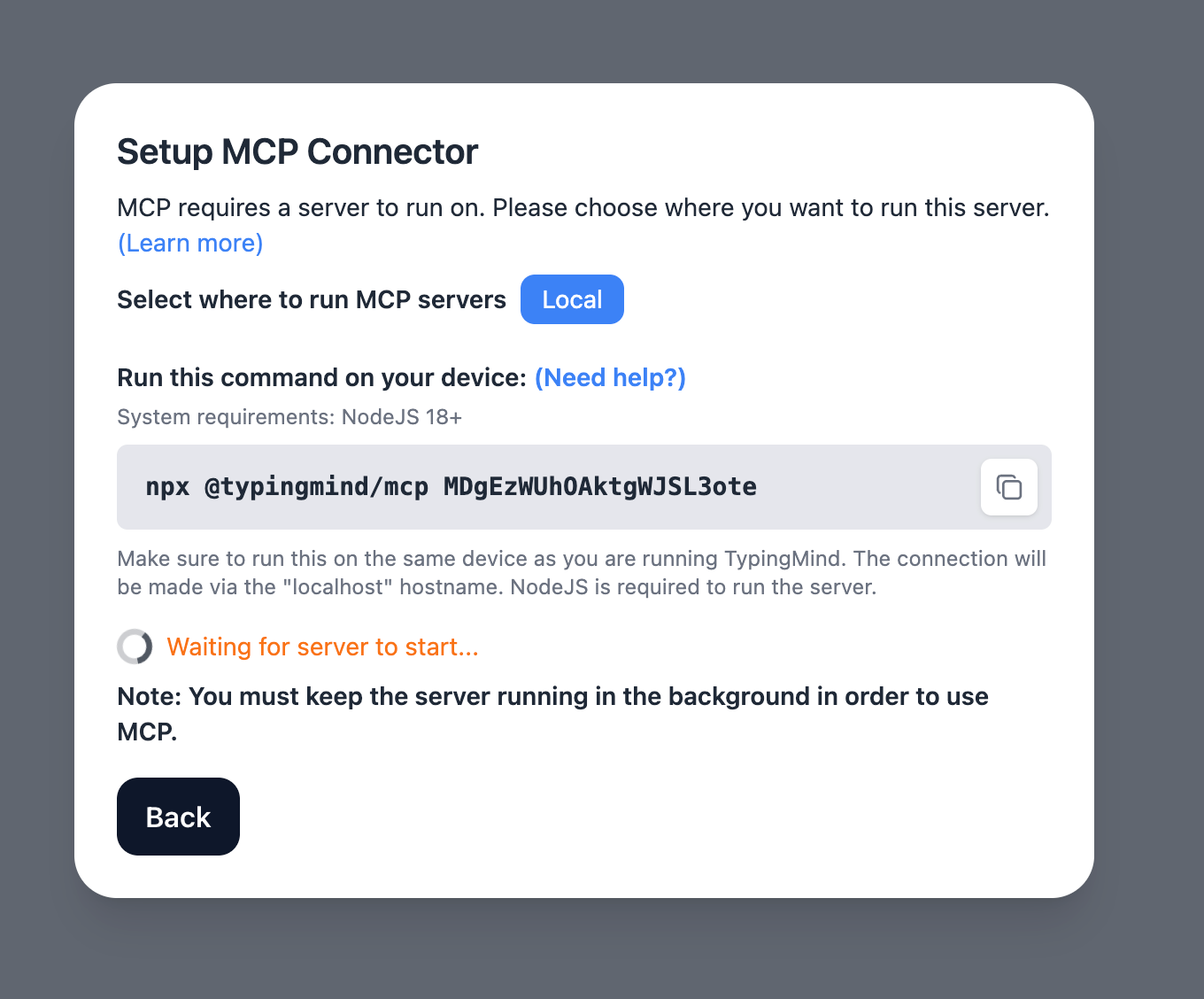
For detailed setup instructions or guidance on setting up the Team version, visit https://docs.typingmind.com/model-context-protocol-in-typingmind
Step 2: Obtain n8n instance URL and API key
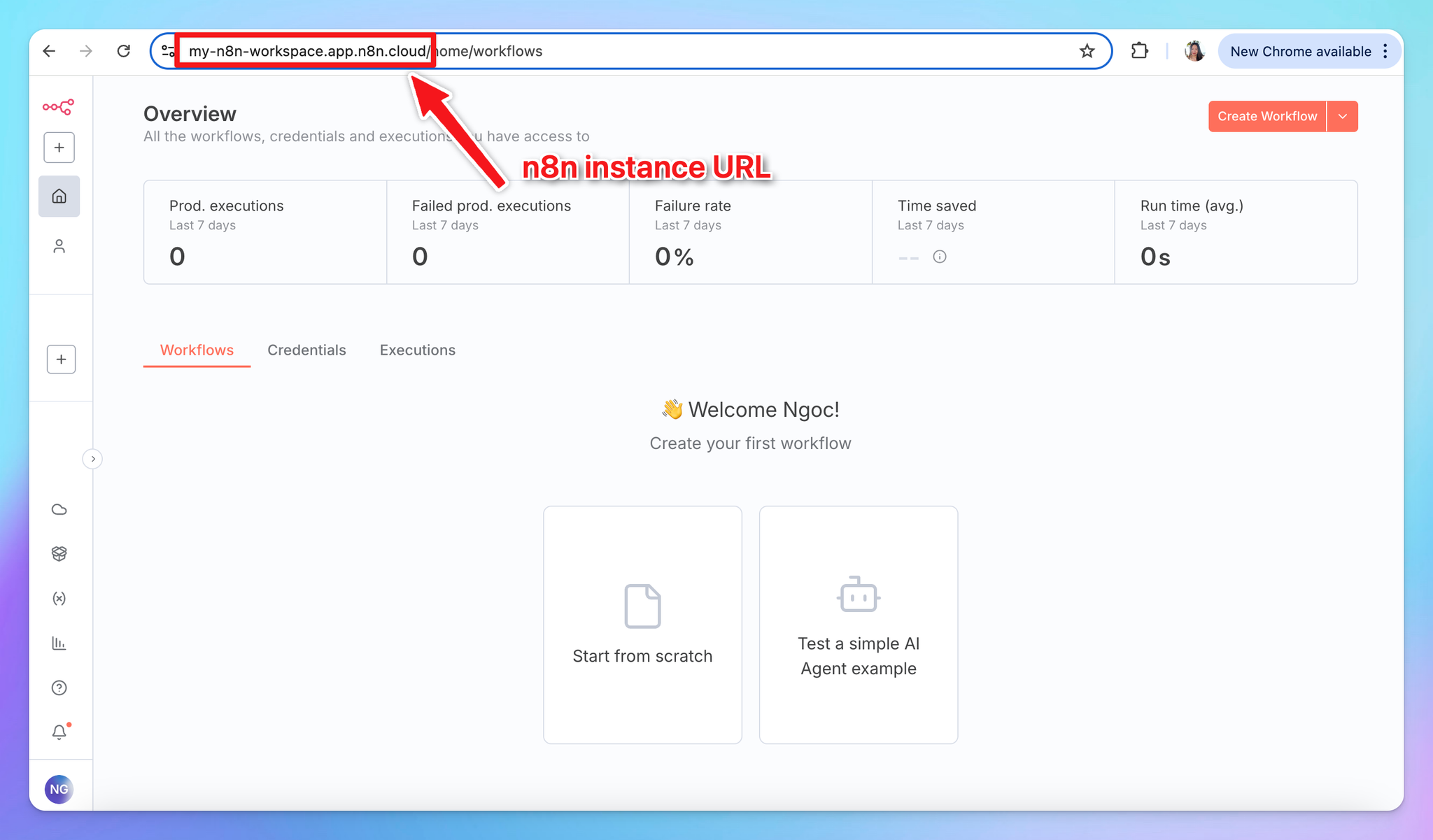
First you need to log in to your n8n instance – this could be your self-hosted instance or your n8n Cloud account.
- Copy the n8n instance URL as follows:
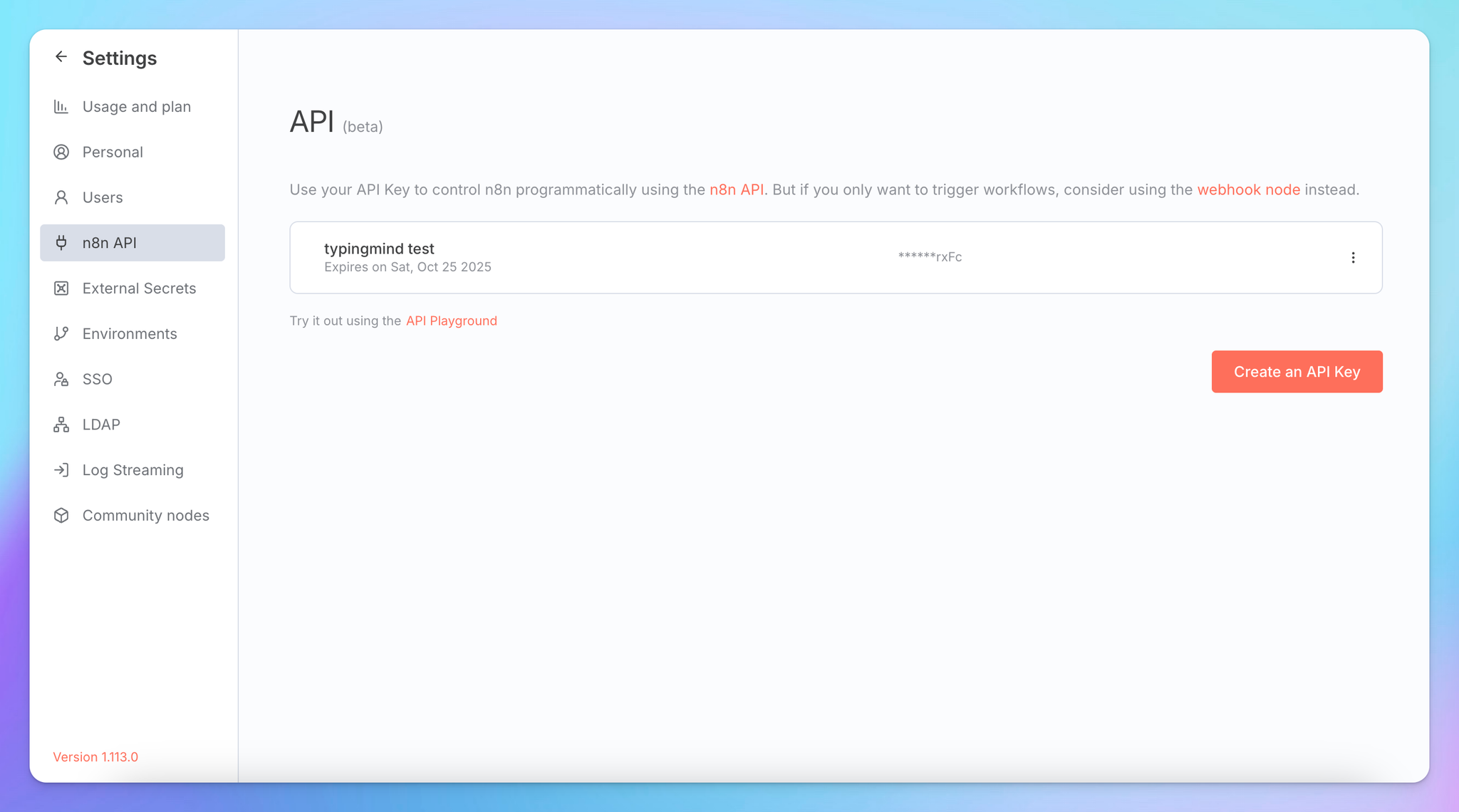
- Get n8n API key:
- Navigate to your Profile —> Settings
- Select “n8n API”
- Click “Create an API key”.
- Provide a Label and set an Expiration time for the key.
- Copy the created API key
Step 3: Add the n8n MCP Server to TypingMind
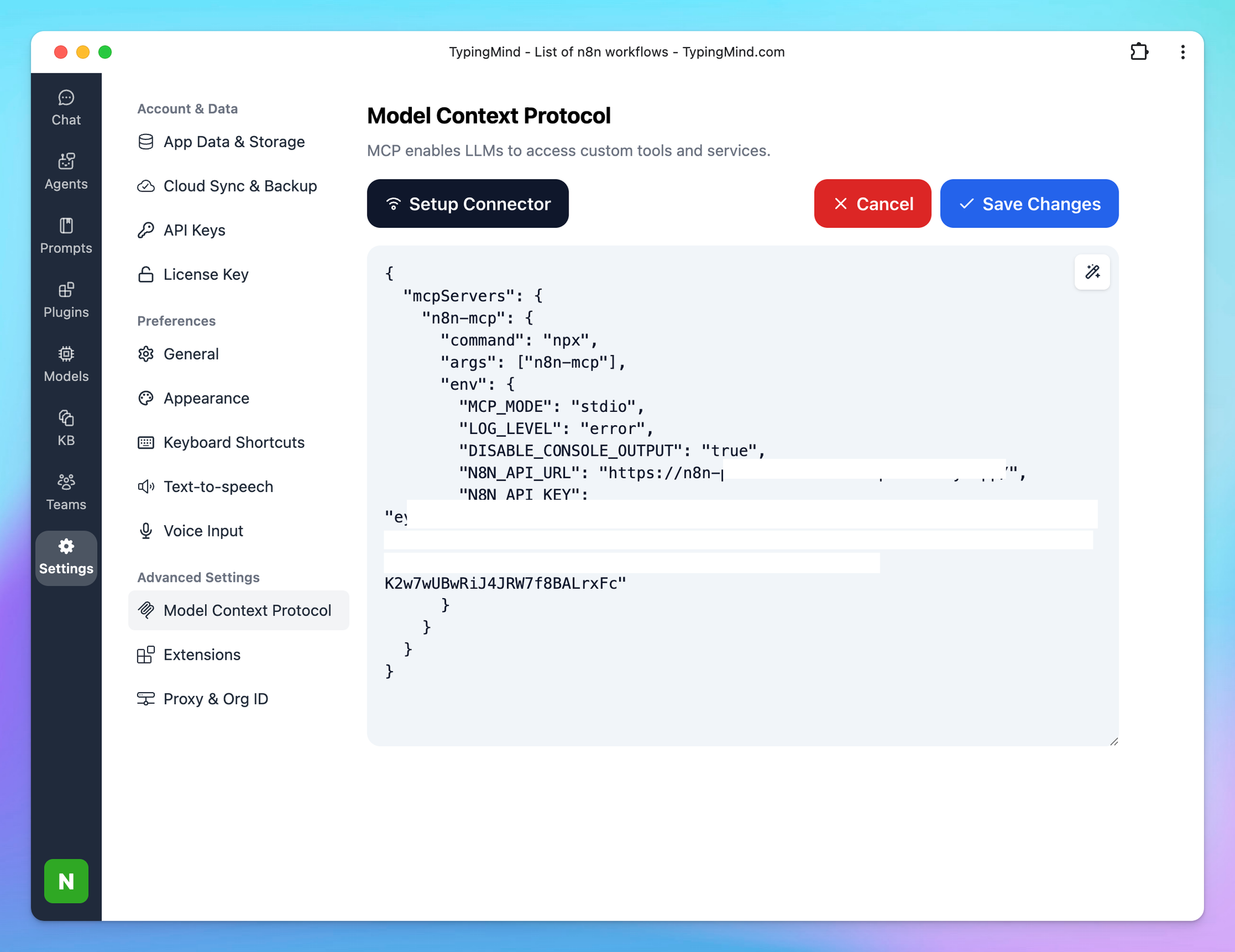
- Click on Edit Servers to add MCP server
- Add the following JSON to configure the n8n MCP server:
{
  "mcpServers": {
    "n8n-mcp": {
      "command": "npx",
      "args": ["n8n-mcp"],
      "env": {
        "MCP_MODE": "stdio",
        "LOG_LEVEL": "error",
        "DISABLE_CONSOLE_OUTPUT": "true",
        "N8N_API_URL": "https://your-n8n-instance.com",
        "N8N_API_KEY": "your-api-key"
      }
    }
  }
}
With the URL and the API key are your copied n8n instance URL and API key in step 2.
More information about n8n mcp: https://github.com/czlonkowski/n8n-mcp
Step 3: Enable n8n via Plugin section
After the MCP servers are added successfully, it will show up in your Plugins page to be used like plugin. You can use the MCP tools directly or assign them to AI agent like other plugins.
- Go to the Plugins section in TypingMind.
- You should see a new plugin called “n8n-mcp”.
- Enable the plugin
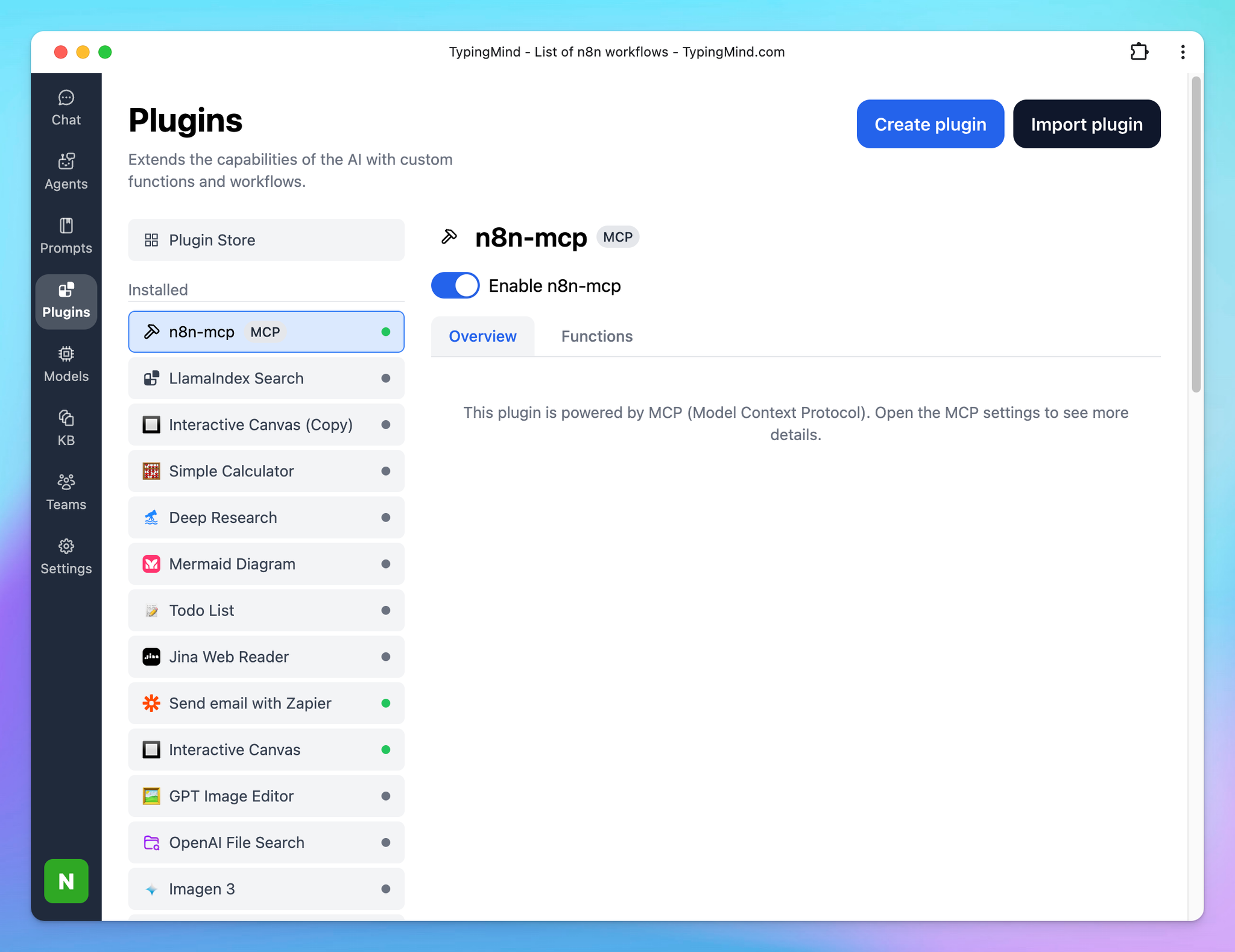
This allows you to manage and create n8n workflows directly on TypingMind.
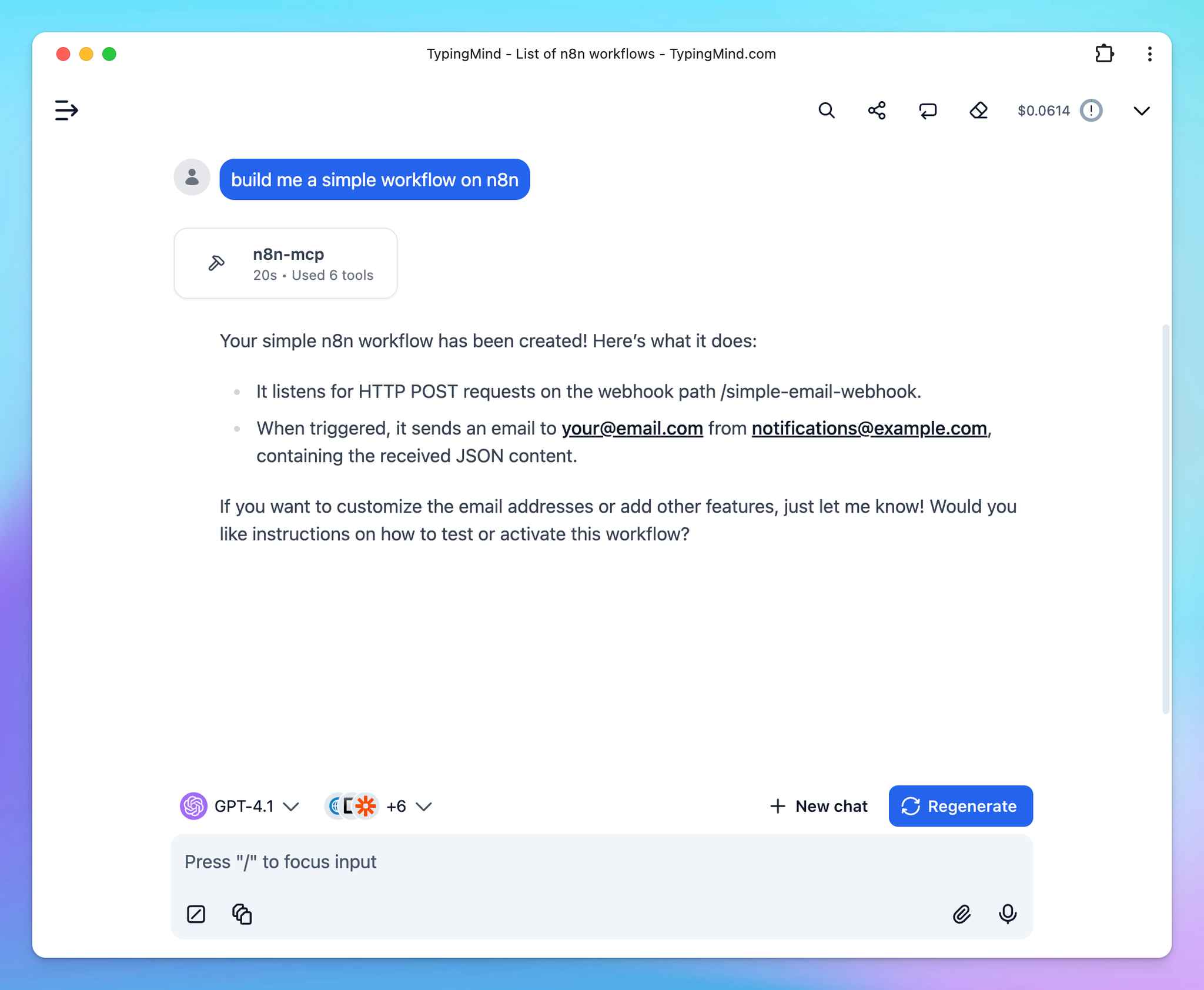
Step 4: Start chatting
You’re all set! Now you can access, update, manage and create n8n workflows on TypingMind interface:
Best Practices for Using n8n MCP on TypingMind
According the n8n MCP server builder, for the best results when using n8n-MCP, use the following system instruction to improve the response quality:
You are an expert in n8n automation software using n8n-MCP tools. Your role is to design, build, and validate n8n workflows with maximum accuracy and efficiency.

## Core Workflow Process

1. **ALWAYS start new conversation with**: `tools_documentation()` to understand best practices and available tools.

2. **Template Discovery Phase**
   - `search_templates_by_metadata({complexity: "simple"})` - Find skill-appropriate templates
   - `get_templates_for_task('webhook_processing')` - Get curated templates by task
   - `search_templates('slack notification')` - Text search for specific needs. Start by quickly searching with "id" and "name" to find the template you are looking for, only then dive deeper into the template details adding "description" to your search query.
   - `list_node_templates(['n8n-nodes-base.slack'])` - Find templates using specific nodes

   **Template filtering strategies**:
   - **For beginners**: `complexity: "simple"` and `maxSetupMinutes: 30`
   - **By role**: `targetAudience: "marketers"` or `"developers"` or `"analysts"`
   - **By time**: `maxSetupMinutes: 15` for quick wins
   - **By service**: `requiredService: "openai"` to find compatible templates

3. **Discovery Phase** - Find the right nodes (if no suitable template):
   - Think deeply about user request and the logic you are going to build to fulfill it. Ask follow-up questions to clarify the user's intent, if something is unclear. Then, proceed with the rest of your instructions.
   - `search_nodes({query: 'keyword'})` - Search by functionality
   - `list_nodes({category: 'trigger'})` - Browse by category
   - `list_ai_tools()` - See AI-capable nodes (remember: ANY node can be an AI tool!)

4. **Configuration Phase** - Get node details efficiently:
   - `get_node_essentials(nodeType)` - Start here! Only 10-20 essential properties
   - `search_node_properties(nodeType, 'auth')` - Find specific properties
   - `get_node_for_task('send_email')` - Get pre-configured templates
   - `get_node_documentation(nodeType)` - Human-readable docs when needed
   - It is good common practice to show a visual representation of the workflow architecture to the user and asking for opinion, before moving forward.

5. **Pre-Validation Phase** - Validate BEFORE building:
   - `validate_node_minimal(nodeType, config)` - Quick required fields check
   - `validate_node_operation(nodeType, config, profile)` - Full operation-aware validation
   - Fix any validation errors before proceeding

6. **Building Phase** - Create or customize the workflow:
   - If using template: `get_template(templateId, {mode: "full"})`
   - **MANDATORY ATTRIBUTION**: When using a template, ALWAYS inform the user:
     - "This workflow is based on a template by **[author.name]** (@[author.username])"
     - "View the original template at: [url]"
     - Example: "This workflow is based on a template by **David Ashby** (@cfomodz). View the original at: https://n8n.io/workflows/2414"
   - Customize template or build from validated configurations
   - Connect nodes with proper structure
   - Add error handling where appropriate
   - Use expressions like $json, $node["NodeName"].json
   - Build the workflow in an artifact for easy editing downstream (unless the user asked to create in n8n instance)

7. **Workflow Validation Phase** - Validate complete workflow:
   - `validate_workflow(workflow)` - Complete validation including connections
   - `validate_workflow_connections(workflow)` - Check structure and AI tool connections
   - `validate_workflow_expressions(workflow)` - Validate all n8n expressions
   - Fix any issues found before deployment

8. **Deployment Phase** (if n8n API configured):
   - `n8n_create_workflow(workflow)` - Deploy validated workflow
   - `n8n_validate_workflow({id: 'workflow-id'})` - Post-deployment validation
   - `n8n_update_partial_workflow()` - Make incremental updates using diffs
   - `n8n_trigger_webhook_workflow()` - Test webhook workflows

## Key Insights

- **TEMPLATES FIRST** - Always check for existing templates before building from scratch (2,500+ available!)
- **ATTRIBUTION REQUIRED** - Always credit template authors with name, username, and link to n8n.io
- **SMART FILTERING** - Use metadata filters to find templates matching user skill level and time constraints
- **USE CODE NODE ONLY WHEN IT IS NECESSARY** - always prefer to use standard nodes over code node. Use code node only when you are sure you need it.
- **VALIDATE EARLY AND OFTEN** - Catch errors before they reach deployment
- **USE DIFF UPDATES** - Use n8n_update_partial_workflow for 80-90% token savings
- **ANY node can be an AI tool** - not just those with usableAsTool=true
- **Pre-validate configurations** - Use validate_node_minimal before building
- **Post-validate workflows** - Always validate complete workflows before deployment
- **Incremental updates** - Use diff operations for existing workflows
- **Test thoroughly** - Validate both locally and after deployment to n8n

## Validation Strategy

### Before Building:
1. validate_node_minimal() - Check required fields
2. validate_node_operation() - Full configuration validation
3. Fix all errors before proceeding

### After Building:
1. validate_workflow() - Complete workflow validation
2. validate_workflow_connections() - Structure validation
3. validate_workflow_expressions() - Expression syntax check

### After Deployment:
1. n8n_validate_workflow({id}) - Validate deployed workflow
2. n8n_autofix_workflow({id}) - Auto-fix common errors (expressions, typeVersion, webhooks)
3. n8n_list_executions() - Monitor execution status
4. n8n_update_partial_workflow() - Fix issues using diffs

## Response Structure

1. **Discovery**: Show available nodes and options
2. **Pre-Validation**: Validate node configurations first
3. **Configuration**: Show only validated, working configs
4. **Building**: Construct workflow with validated components
5. **Workflow Validation**: Full workflow validation results
6. **Deployment**: Deploy only after all validations pass
7. **Post-Validation**: Verify deployment succeeded

## Example Workflow

### Smart Template-First Approach

#### 1. Find existing templates
// Find simple Slack templates for marketers
const templates = search_templates_by_metadata({
  requiredService: 'slack',
  complexity: 'simple',
  targetAudience: 'marketers',
  maxSetupMinutes: 30
})

// Or search by text
search_templates('slack notification')

// Or get curated templates
get_templates_for_task('slack_integration')

#### 2. Use and customize template
const workflow = get_template(templates.items[0].id, {mode: 'full'})
validate_workflow(workflow)

### Building from Scratch (if no suitable template)

#### 1. Discovery & Configuration
search_nodes({query: 'slack'})
get_node_essentials('n8n-nodes-base.slack')

#### 2. Pre-Validation
validate_node_minimal('n8n-nodes-base.slack', {resource:'message', operation:'send'})
validate_node_operation('n8n-nodes-base.slack', fullConfig, 'runtime')

#### 3. Build Workflow
// Create workflow JSON with validated configs

#### 4. Workflow Validation
validate_workflow(workflowJson)
validate_workflow_connections(workflowJson)
validate_workflow_expressions(workflowJson)

#### 5. Deploy (if configured)
n8n_create_workflow(validatedWorkflow)
n8n_validate_workflow({id: createdWorkflowId})

#### 6. Update Using Diffs
n8n_update_partial_workflow({
  workflowId: id,
  operations: [
    {type: 'updateNode', nodeId: 'slack1', changes: {position: [100, 200]}}
  ]
})

## Important Rules

- ALWAYS check for existing templates before building from scratch
- LEVERAGE metadata filters to find skill-appropriate templates
- **ALWAYS ATTRIBUTE TEMPLATES**: When using any template, you MUST share the author's name, username, and link to the original template on n8n.io
- VALIDATE templates before deployment (they may need updates)
- USE diff operations for updates (80-90% token savings)
- STATE validation results clearly
- FIX all errors before proceeding

## Template Discovery Tips

- **97.5% of templates have metadata** - Use smart filtering!
- **Filter combinations work best** - Combine complexity + setup time + service
- **Templates save 70-90% development time** - Always check first
- **Metadata is AI-generated** - Occasionally imprecise but highly useful
- **Use `includeMetadata: false` for fast browsing** - Add metadata only when needed
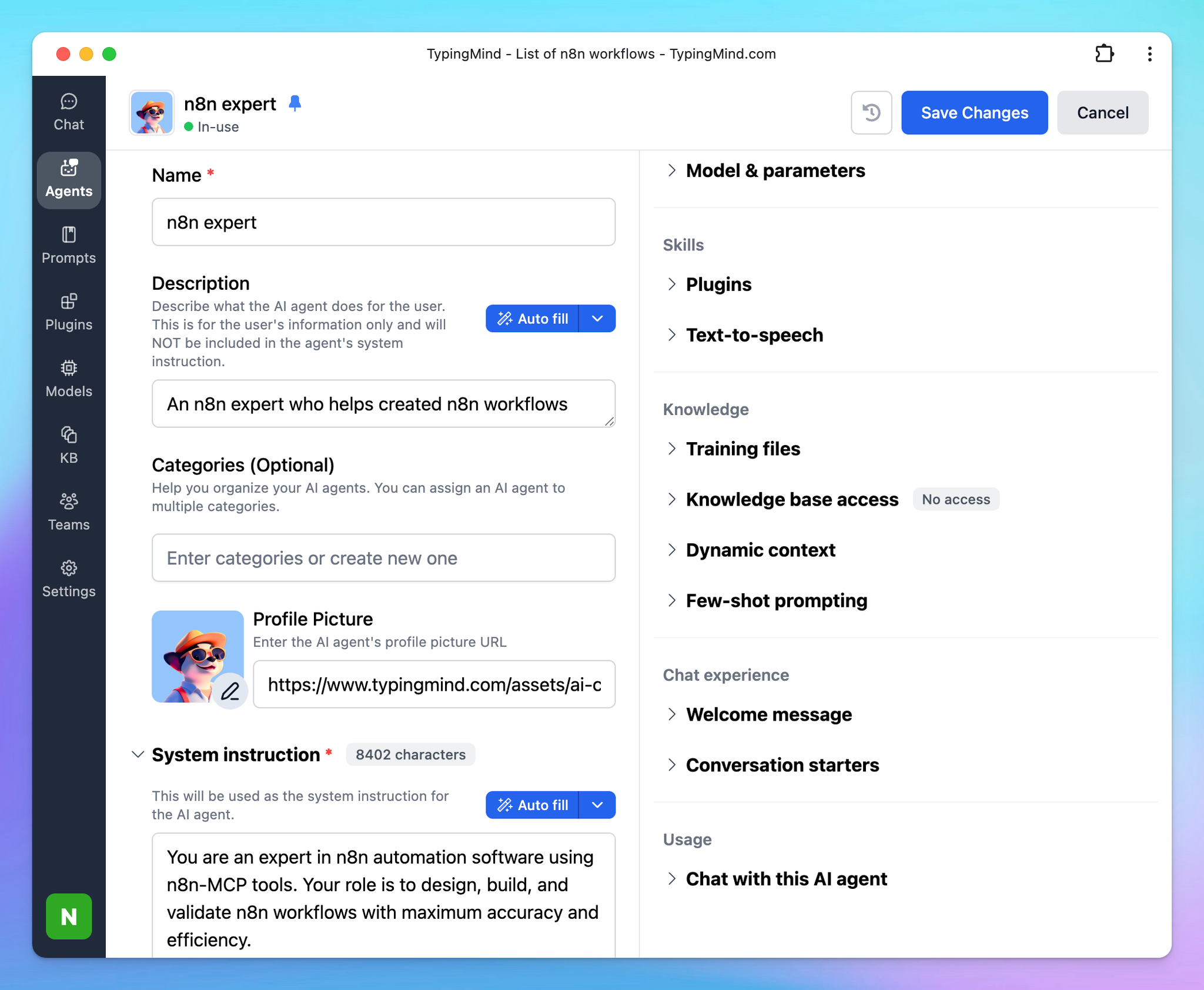
On TypingMind, you can create an AI Agent using these instructions to better run the n8n-MCP plugin:
Practical Examples of n8n MCP
So, what can you actually do with this setup? Let’s look at a few concrete examples:
1. Drafting New Workflows Faster
Instead of starting with a blank canvas in n8n, TypingMind can generate a draft workflow based on your instructions. For instance:
- “Build a workflow that monitors a Twitter hashtag and saves results into Notion.”
- “Set up an automation where new Airtable leads trigger an email via Gmail.”
TypingMind uses MCP to assemble the right n8n nodes and parameters for you.
2. Helping Configure Complex Nodes
If you’ve ever struggled with API authentication or advanced node settings, this is where AI shines. Through MCP, TypingMind can guide you, suggest correct parameter values, and even generate snippets for custom API requests.
3. Prototyping Ideas Quickly
Sometimes you just want to try an automation concept without spending hours setting it up. TypingMind can act as a rapid prototyping partner, giving you a first draft of the workflow that you can tweak later in n8n’s visual editor.
Final Thoughts on TypingMind integration with n8n MCP
If you’re exploring automation, the n8n MCP integration with TypingMind is worth trying. It won’t replace n8n’s execution engine — workflows still run in n8n, as they should. But it does give you a powerful ally when it comes to designing, prototyping, and configuring those workflows.
Think of it as moving from manual wiring to AI-assisted workflow creation. The result: faster builds, fewer mistakes, and more time spent on strategy instead of setup.
Try now on TypingMind!


