


TypingMind is powerful as a chat interface for LLMs, and it becomes exponentially more useful when it can connect to your everyday tools to automate tasks.
With the Zapier MCP integration, you can send actions from TypingMind to thousands of apps like Notion, Slack, Google Sheets, Trello, and more — all through natural language prompts.
This setup allows you to use TypingMind as a single LLM-powered dashboard for your workflows. No more switching between apps. Just chat, and let the automation happen.
What is TypingMind?
TypingMind.com is the best chat UI that help you harness the full potential of ChatGPT and other AI models so you can get the well-shaped AI responses that specifically tailor for your needs.
It offers advanced features such as multiple AI models conversation, chat management (Projects, Folders), plugin integrations, multiple AI agents, and fine-tuned controls for connecting external data and services. TypingMind allows deeper customization, including connecting to MCP servers.

What is Zapier MCP?
Zapier MCP gives your AI assistant direct access to over 7,000+ apps and 30,000+ actions without complex API integrations. Now your AI can perform real tasks like sending messages, managing data, scheduling events, and updating records—transforming it from a conversational tool to a functional extension of your applications.
How to Set Up Zapier MCP with TypingMind
Setting up the Zapier MCP in TypingMind takes just a few minutes. Here’s the step-by-step guide:
Phase 1: Get Zapier Server URL
1. Sign in to Zapier MCP
Go to zapier.com/mcp and sign in with your Zapier account.
2. Create a new MCP server
- Click Create new MCP server.
- Choose “Other” as the client type.
- Give it a name — e.g.,
TypingMind.
3. Add tools to the server
- Click Add Tool.
- Choose the apps you want to connect (e.g., Gmail, Slack, Notion).
- Define what each tool should do — like sending an email, creating a task, or appending data to a spreadsheet.
- Save your tool configuration.

4. Copy the server URL
- Go to the Connect tab of your MCP server.
- Copy the Server URL provided by Zapier (e.g.
https://mcp.zapier.com/api/mcp/s/xxxxx/mcp).
⚠️ Treat this URL like a password. It gives TypingMind access to your configured tools.

Phase 2: Set up MCP server on TypingMind
5. Set up MCP Connectors
In TypingMind, go to Settings → Advanced Settings → Model Context Protocol to start setup your MCP connector. The MCP Connector acts as the bridge between TypingMind and the MCP servers.
MCP servers require a server to run on. TypingMind allows you to connect to the MCP servers via:
- Your own local device
- Or a private remote server.
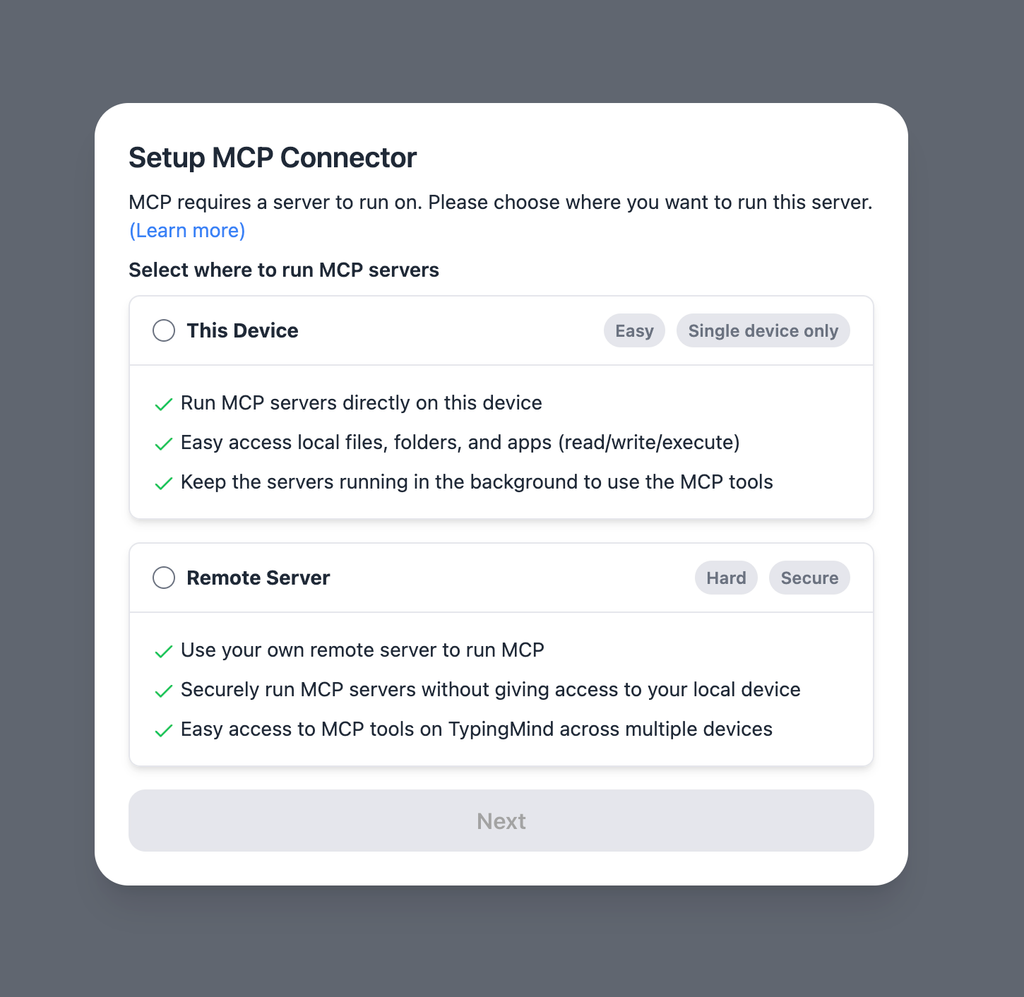
If you choose to run the MCP servers on your device, run the command displayed on the screen.
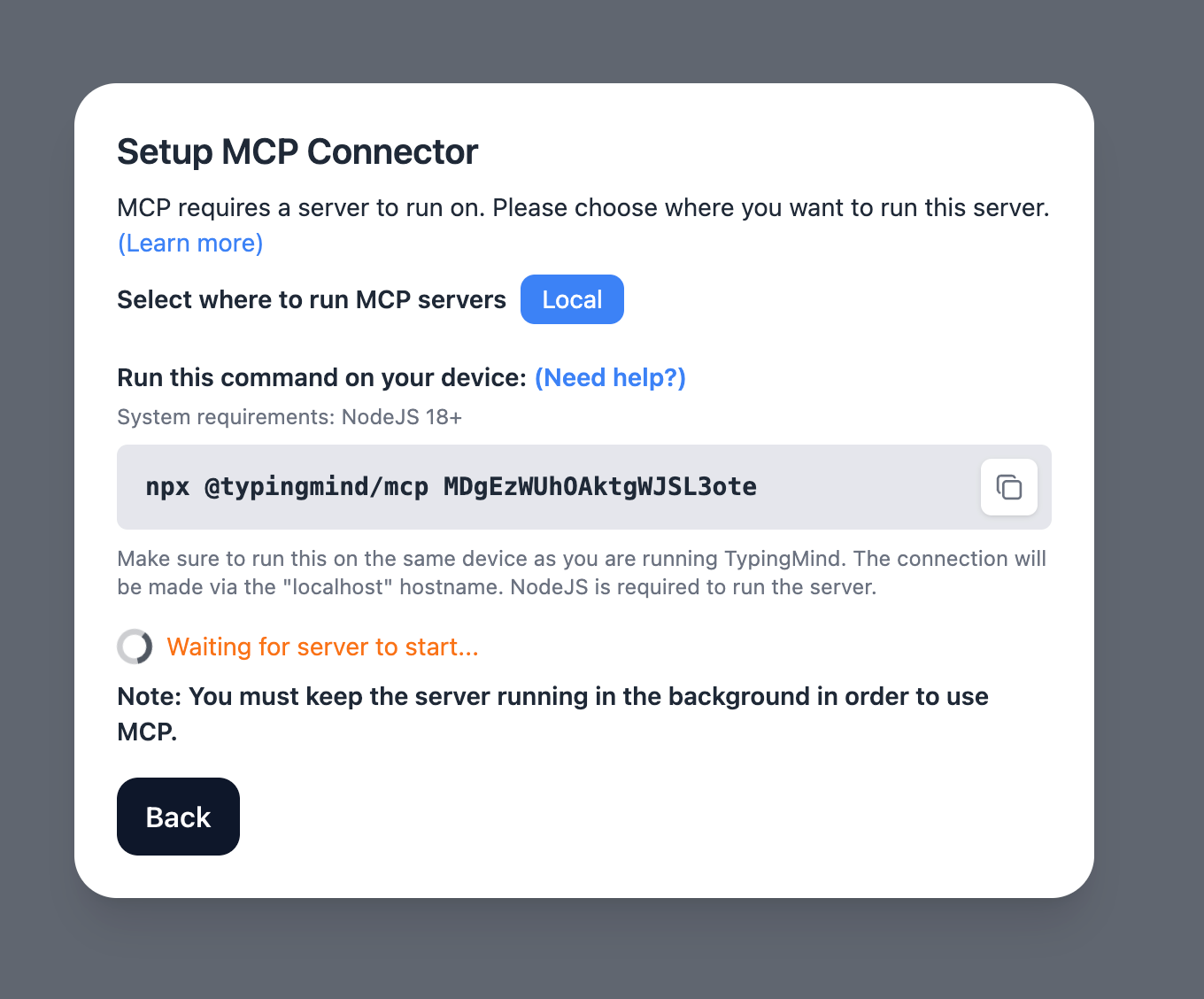
Detail setup can be found at https://docs.typingmind.com/model-context-protocol-in-typingmind
6. Add the Zapier MCP server to TypingMind
- Open TypingMind and go to
Settings → Model Context Protocol. - Click on Edit Servers to add MCP server
- Add the following JSON to configure the Zapier MCP server:
{
"mcpServers": {
"zapier": {
"url": "https://mcp.zapier.com/api/mcp/s/xxxxx/mcp"
}
}
}
With https://mcp.zapier.com/api/mcp/s/xxxxx/mcp is your copied Zapier server URL in phase 1.
- Click Save Changes.
6. Enable the Zapier Plugin
- In TypingMind, go to the Plugins tab.
- Enable the Zapier plugin

Top 5 Example Use Cases
1. Manage your inbox without lifting a finger
Prompt:
“Archive all emails from LinkedIn this month, label them as ‘Networking’, and auto‑reply: ‘Thanks, I’ll get back to you soon.’”
The AI identifies the criteria, formats the instruction, and Zapier handles the full automation in Gmail — including filtering, labeling, and sending a templated reply.

2. Auto‑summarize meetings and sync to Notion + Email
Prompt:
“Summarize this uploaded transcript, save it in Notion under ‘Client Calls’, and email the summary to the product team.”
Once the AI generates a summary, Zapier simultaneously creates a Notion page and sends an email to the specified recipients — no copy-paste, no manual steps.

3. Clean up Google Drive or Dropbox automatically
Prompt:
“Move all PDFs from ‘Temp Uploads’ older than 7 days to the ‘Archive 2024’ folder.”
AI determines intent and Zapier scans your folder, applies filters, and moves files in bulk. Useful for creators, legal teams, or anyone dealing with large doc volumes.
4. Route customer messages from chat to the right team
Prompt:
“If a user says anything related to billing, forward their message to #billing‑support on Slack. If it’s urgent, ping directly.”
TypingMind classifies the topic via AI, and Zapier handles the routing logic. You can also auto‑create tickets in tools like Zendesk or Intercom.
5. Capture structured data from conversations into Airtable
Prompt:
“Log this feedback: User – Janet, Feature – Dark mode, Sentiment – Positive, Request – Make it default.”
AI parses the chat, structures the data, and Zapier adds it as a new row in Airtable or Google Sheets. Ideal for research, product, or support use cases.
Connect 6,000+ Apps and Automate 30,000+ Actions with TypingMind + Zapier MCP
The five use cases above are just a starting point. With Zapier MCP, TypingMind becomes a universal interface to run nearly any automation you can imagine.
You can:
- Post AI-generated content to Twitter, LinkedIn, or WordPress
- Trigger multi-step approval flows in Airtable
- Sync chat data to CRMs like HubSpot or Salesforce
- Generate PDFs and upload them to Google Drive
- Kick off multi-app workflows from a single message
If Zapier supports it, your AI assistant can run it on TypingMind — no plugins, no toggling tabs, no coding.
Final Thoughts
Connecting Zapier MCP to TypingMind transforms simple conversations into powerful automation engines. Instead of just chatting with AI, you’re commanding your entire digital workspace—email, project management, file organization, and more—all from one interface.
Try now on TypingMind!


