


TypingMind supports integration with external knowledge bases and databases beyond the native RAG system within the app. In this guide, we will show you how to connect LlamaIndex to TypingMind via TypingMind Model Context Protocol (MCP), enabling your AI conversations to pull information from your indexed documents, notes, and databases in real-time.
This integration allows you to query your private organizational data in LlamaIndex directly within TypingMind’s chat interface. Instead of working with AI responses based solely on their training data, you get answers informed by your specific documents and knowledge repositories.
What is LlamaIndex?
Before doing the connection, it helps to understand what LlamaIndex is and why you might use it.
- What: A framework to structure, index, and retrieve information from many data sources — documents, databases, APIs, cloud storage, etc.
- Why: Rather than recalling general knowledge, your queries are answered using your documents/data. This improves relevance, accuracy, and customization.
- How it works: You create “indexes” over sources; these indexing structures are used to find relevant content when a query comes in.

Why Connect TypingMind and LlamaIndex?
While TypingMind’s built-in RAG features are powerful and easy to use, integrating LlamaIndex opens up more possibilities for people who want extra control or have complex data needs. For example:
- More Flexibility: LlamaIndex lets you experiment with different ways to organize and retrieve your information—like using vector search, graphs, or keyword-based lookup.
- Custom Data Flows: You can set up your own pipelines to clean, preprocess, or filter data before it’s added—great if your files need special handling.
- Combine More Sources: It becomes easy to pull in data from many places at once—Notion, Google Drive, databases, APIs, and more—so you can search across all your content easier.
Step-by-Step Setup to Integrate LlamaIndex to TypingMind
Step 1. Create an Index in LlamaIndex
- Log in to LlamaIndex.
- Create a new index in your dashboard.

2. Connect your data sources — you might use Google Drive, Notion, local files, or databases.
3. Save these details:
- Index name
- Project name
- Organization ID

Note: If you already have an index, click into it to review its details and data source connections.
Step 2. Generate Your API Key
- In LlamaIndex, navigate to API Keys.
- Generate a new key and copy it somewhere secure.
- This key will authenticate TypingMind when it calls your indexes.

Step 3. Set up MCP Connectors on TypingMind
In TypingMind, go to Settings → Advanced Settings → Model Context Protocol to start setup your MCP connector. The MCP Connector acts as the bridge between TypingMind and the MCP servers.
MCP servers require a server to run on. TypingMind allows you to connect to the MCP servers via:
- Your own local device
- Or a private remote server.

If you choose to run the MCP servers on your device, run the command displayed on the screen.

Detail setup can be found at https://docs.typingmind.com/model-context-protocol-in-typingmind
Step 4: Configure LlamaCloud MCP on TypingMind
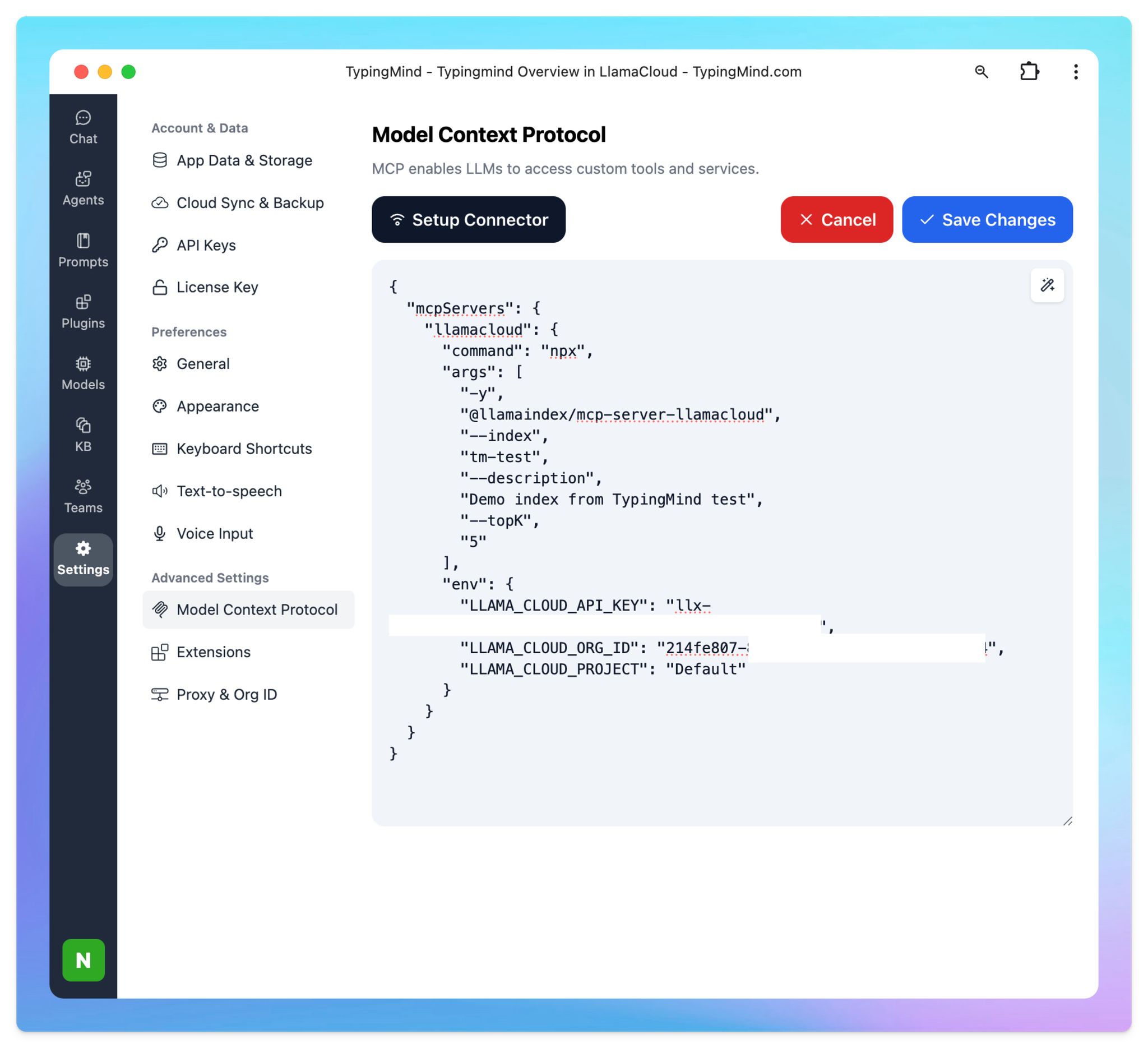
Add the following JSON configuration under MCP Servers in TypingMind settings:
{
  "mcpServers": {
    "llamacloud": {
      "command": "npx",
      "args": [
        "-y",
        "@llamaindex/mcp-server-llamacloud",
        "--index",
        "<your-index-name>",
        "--description",
        "<your-index-description>",
        "--topK",
        "5",
        "--index",
        "<your-another-index-name>",
        "--description",
        "<your-another-index-description>"
      ],
      "env": {
        "LLAMA_CLOUD_API_KEY": "<YOUR_API_KEY>",
        "LLAMA_CLOUD_ORG_ID": "<organization_ID>",
        "LLAMA_CLOUD_PROJECT": "<project_name>"
      }
    }
  }
}- Replace
<your-index-name>and<your-index-description>with your actual index details in step 1. - You can add multiple indexes by repeating the
-indexand-descriptionarguments. - Replace
<YOUR_API_KEY>with your Llama Cloud API key in step 2. - You can also optionally specify
--topKto limit the number of results. - The
LLAMA_CLOUD_PROJECT_NAMEenvironment variable is optional and defaults toDefaultif not set.
More information about LlamaCloud MCP
Step 5. Enable LlamaIndex in TypingMind
Once the MCP config is saved, enable the LlamaCloud connector. From now on, when you ask questions in TypingMind, it can fetch context from your LlamaIndex indexes.

Integrating LlamaIndex: Practical Use Cases
1. Product Documentation & Support
If you’re on the support team at a SaaS company. All your manuals, API docs, and troubleshooting guides are scattered across Google Drive, Notion, and emails.
With LlamaIndex connected on TypingMind, you just upload or connect those sources once — and now anyone on your team can ask, “How does the new authentication flow work?” and get the answer instantly. No more manual searching.
2. Research & Academia
For researchers or students:
Instead of digging through hundreds of PDFs and academic papers, you just drag your whole library in.
Next time you wonder, “Which papers talk about transformers in genomics?” or “Where did I read about that rare statistical method?” — just ask. You get a summary or direct quote, and even the paper reference, all in seconds.
3. Legal & Compliance
For legal teams:
You’ve got folders full of contracts, regulations, and case notes.
Rather than hunting through files, you can just type, “Find me any clause about liability in our vendor contracts.” The system scans your documents and brings you straight to the relevant sections — saving hours on reviews.
4. Business Knowledge Base
For startups or project teams:
You upload all your meeting notes, strategy docs, and goals to your knowledge base.
Now when someone new joins and asks, “What were our Q2 marketing objectives?” or “Who’s responsible for the next product launch?” — they don’t have to ping everyone. The answer pops up instantly, right from your real docs.
5. Personal Knowledge Management
For anyone managing their own info:
All your book highlights, saved articles, personal notes, and side projects finally live in one place.
You can say, “Summarize everything I’ve collected about Stoicism,” or “Show me all my notes on machine learning interviews.” The assistant finds and organizes your scattered thoughts for you.
Wrapping Up
TypingMind‘s built-in capabilities might be all you need, but connecting external systems like LlamaIndex can transform how you interact with your data. The goal isn’t to add complexity for its own sake, it’s to create an AI assistant that actually fits your workflow and helps you work more effectively.
When your information is scattered across multiple sources or you need more sophisticated search capabilities, integrating LlamaIndex becomes valuable. The setup process is more accessible than you might expect, and the impact on your daily workflow can be significant.
Try connecting LlamaIndex to TypingMind now!


