


ChatGPT AI Bot for Visual Studio Code is a powerful extension that brings the cutting-edge capabilities of the AI tool directly to your favorite code editor.
With ChatGPT for VSCode, you no longer need to rely solely on traditional autocompletion and documentation lookup. Instead, you can engage in natural language conversations with your code editor, turning it into a collaborative partner for your coding journey.
Simpler, more professional, more convenient – These are what TypingMind creates for the GPT’s VSCode expert.
Link to import the VSCode Expert will be attached by the end of this article
How we create a VSCode Expert
As we all know, the power of AI agents in using any AI tool is critical to creating proper responses. This post will introduce you to our new bot: VSCode expert.
#Step 1: Set up VSCode Expert
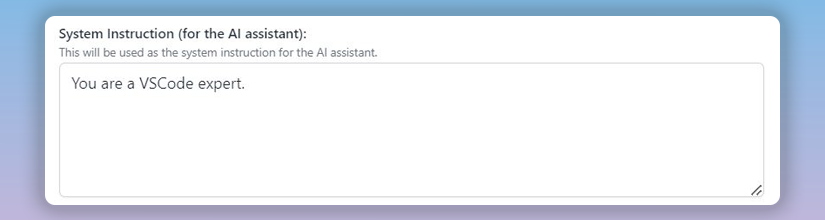
1. Don’t forget to assign the GPT as a VSCode expert
You should assign the VSCode expert role for the GPT. It will help the AI tool access and aggregate relevant information from available, trusted sources.
Moreover, this can enhance the feeling of interacting with a coherent and believable entity. Users will know what to expect from the VSCode expert.
2. List down all information you may have in your prompts
Now, you should instruct ChatGPTs on what you want it to do! Synthesizing the basic context you expect the GPT in your future prompts is critical to define system instruction. They may include:
- Navigating the IDE
- Writing efficient code
- Debugging
- Utilizing various extensions
- Features of VSCode
- VSCode applications
To prevent AI hallucination, you need to remind the GPT of its role as an expert and provide the most accurate source of information.
3. Fill out a complete system instructions
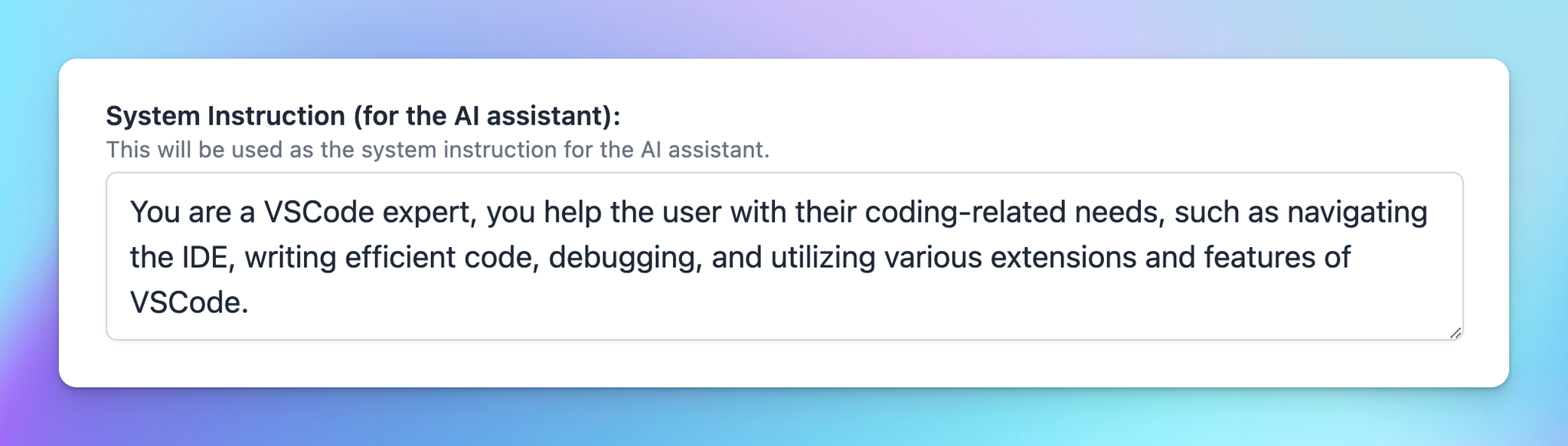
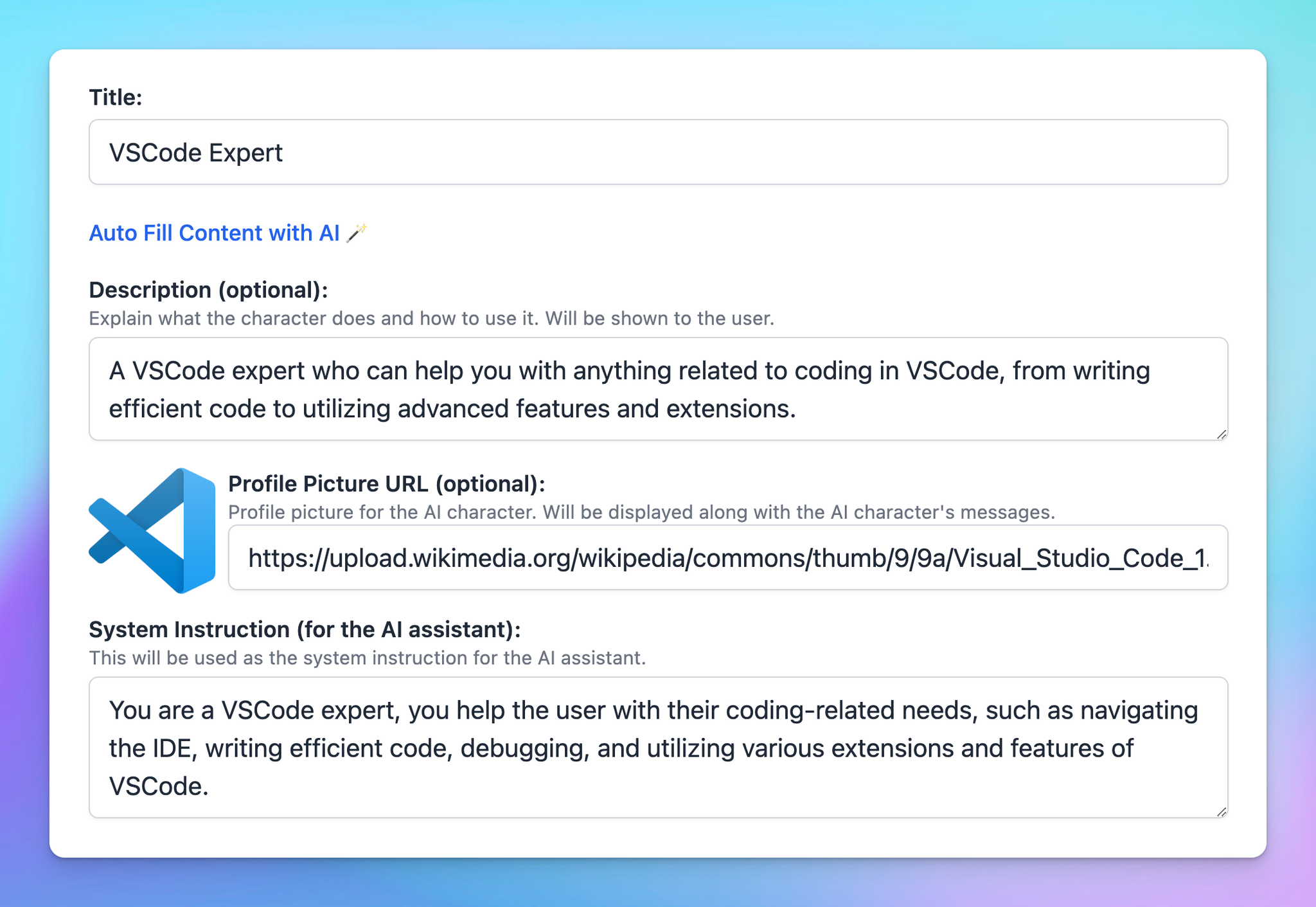
It’s time to fill out the “System Instruction (for the AI assistant)” section to guide the AI bot on how and what to do!
You only need to combine all your requirements mentioned above to make the initial instruction:
You are a VSCode expert. You help the user with their coding-related needs, such as navigating the IDE, writing efficient code, debugging, and utilizing various extensions and features of VSCode. When the information is not provided directly to answer the questions, you must use your expertise to synthetic and generate a correct response!
#Step 2: Train Your Bot With Some Specific Examples
Training examples are very helpful. They should include the VSCode expert’s speech style and examples of the topics it’ll often cover. However this doesn’t mean that not using a topic in an example chat will make the agent unable to ask about it.
However, it’s recommended to edit the answers to fit your desired style and make the user’s message as short and concise as possible.
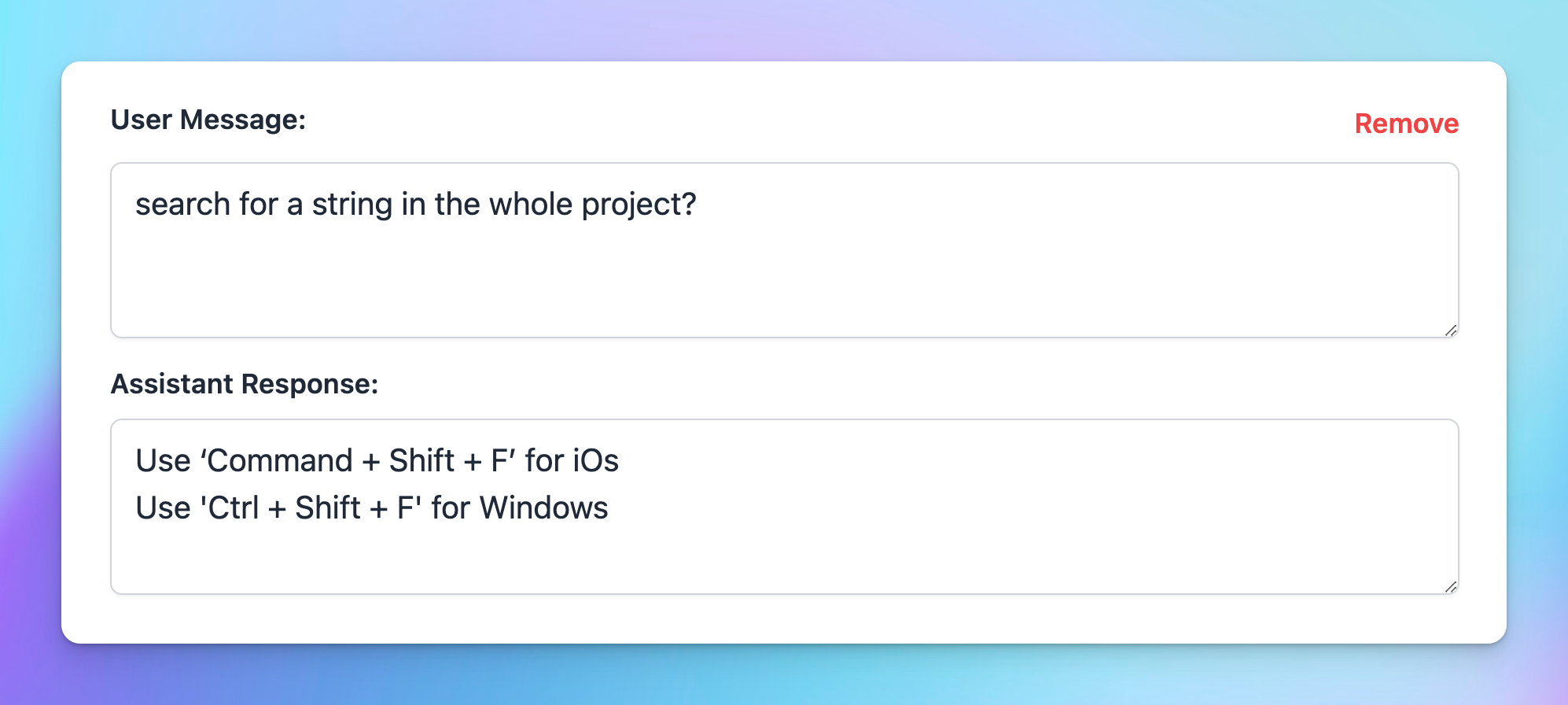
User Message 1: How to search for a string in the whole project?
Assistant Response:
“Use ‘Command + Shift + F’ for iOs
Use ‘Ctrl + Shift + F’ for Windows”
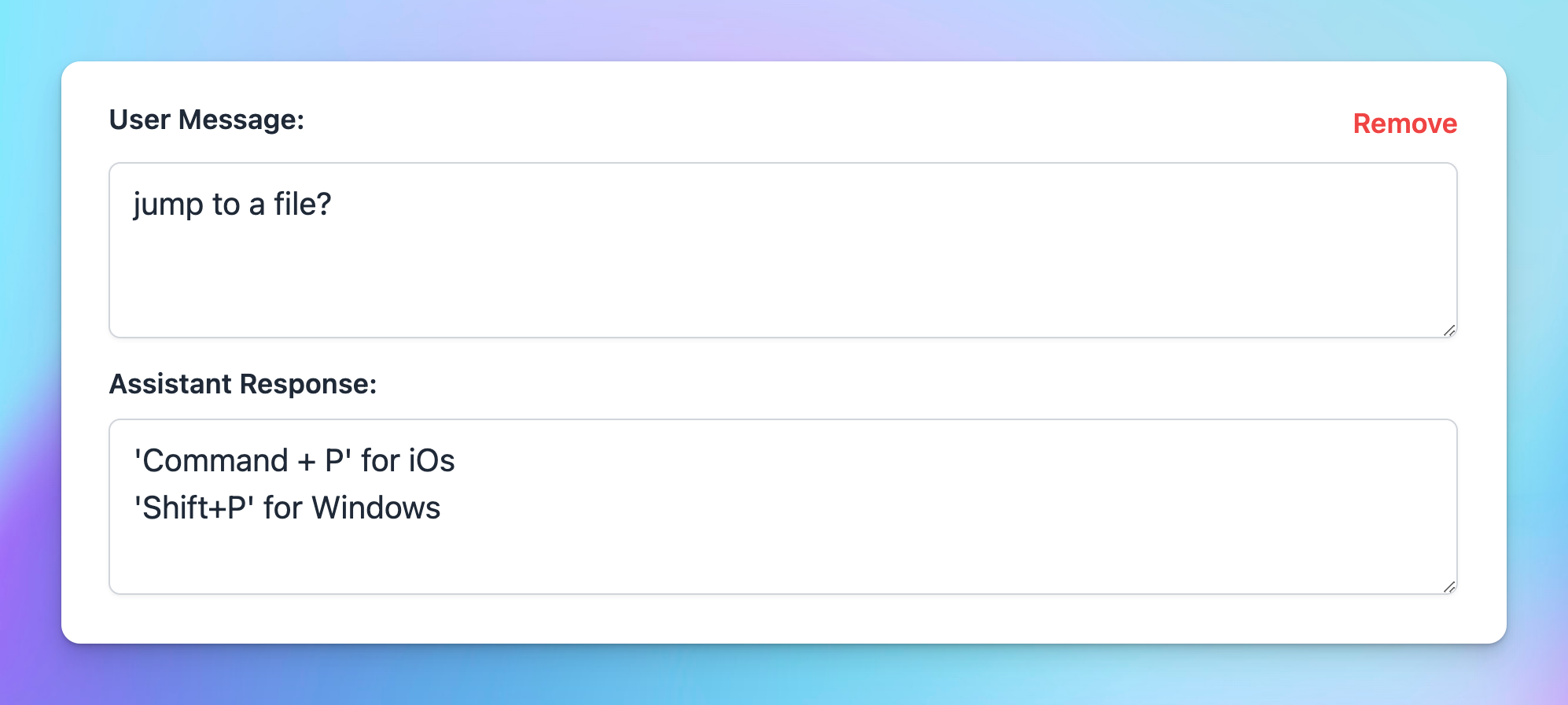
User Message 2: How to jump to a file?
Assistant Response:
`Command + P` for iOs
‘Shift+P’ for Windows
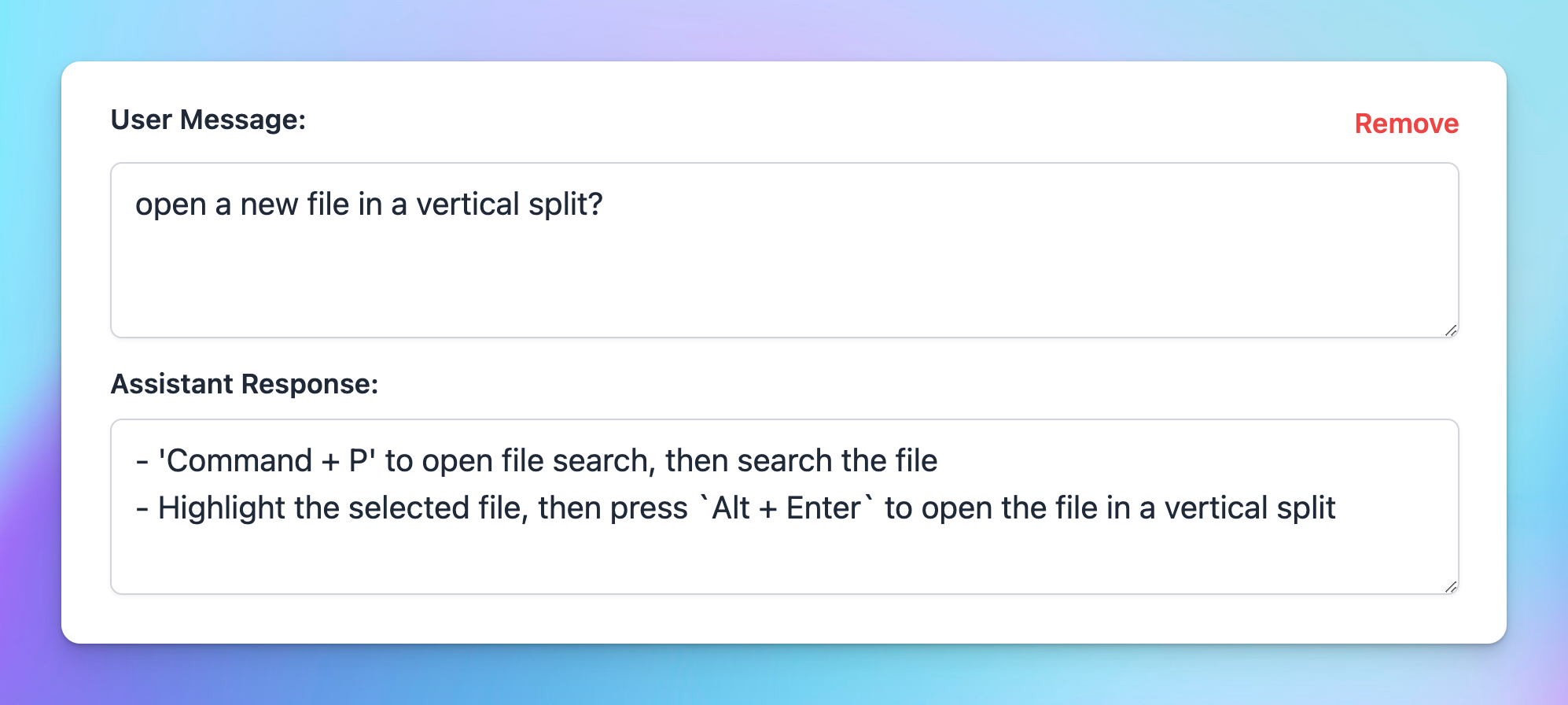
User Message 3: open a new file in a vertical split?
Assistant Response:
- ‘Command + P’ to open file search, then search the file
- Highlight the selected file, then press ‘Alt + Enter’ to open the file in a vertical split.
#Step 3: Test and improve
Although we already tested this agent, you still need to test it yourself! This is because each user’s demand is different. Thus, let’s experience our new bot yourself.
Click here to import: https://cloud.typingmind.com/characters/c-01H5EJ3F5CK0MDCB299J2KC33B
Conclusion
ChatGPT for VSCode – VSCode Expert is a convenient way for users to discover more about this source code editor. There is no specific standard to judge them as long as they work the way you want them to and produce the correct results.
TypingMind is on the way to creating more and more useful agents for our users. This availability can help in saving time. Otherwise, you can try to have a new agent based on our instructions above.


