


Ever had an AI assistant forget everything you told it the moment you start a new chat? If you’ve felt like you’re constantly re-explaining your preferences, context, and requirements, you’re not alone. Most AI tools today suffer from “conversation amnesia”—each session starts with a blank slate.
But there’s a solution that’s transforming how we interact with AI: persistent memory. With Memory MCP (Model Context Protocol) and TypingMind, you can create an AI assistant that actually remembers you, learns your preferences, and builds on previous conversations.
This guide shows you exactly how to set it up.
The Memory Problem in AI
Traditional AI assistants operate like goldfish—they forget everything after each conversation ends. This creates several frustrations:
- Constant re-explanation of your role, preferences, and context
- Lost continuity across projects and sessions
- Repetitive clarifications that waste time
- Generic responses that don’t adapt to your specific needs
The solution lies in giving AI systems persistent, cross-session memory.
Understanding the Technology Stack
Before diving into setup, let’s understand the three key components:
Model Context Protocol (MCP)
MCP is an open standard created by Anthropic that enables AI systems to securely connect with external data sources and tools. Think of it as a universal translator that lets your AI talk to databases, files, APIs, and other services in a standardized way.
Key capabilities:
- External connections: AI can access files, databases, and APIs
- Security controls: You define exactly what the AI can access
- Extensibility: Easy integration with new data sources
Learn more about Model Context Protocol.
TypingMind
TypingMind.com is an advanced chat interface that enhances AI interactions with features like:
- Multi-model support (ChatGPT, Claude, Gemini, etc.)
- Project organization and chat management
- Plugin integrations and MCP server connectivity
- Custom model parameters and fine-tuned controls

Memory MCP Server
This specialized MCP server handles persistent memory storage and retrieval. It provides:
- Local storage: Your data stays under your control
- Cross-session memory: Information persists between conversations
- Knowledge graph management: Stores entities, relationships, and observations
- Search capabilities: AI can query past interactions and preferences

Step-by-step to install Memory MCP on TypingMind
Step 1: Set up MCP Connectors
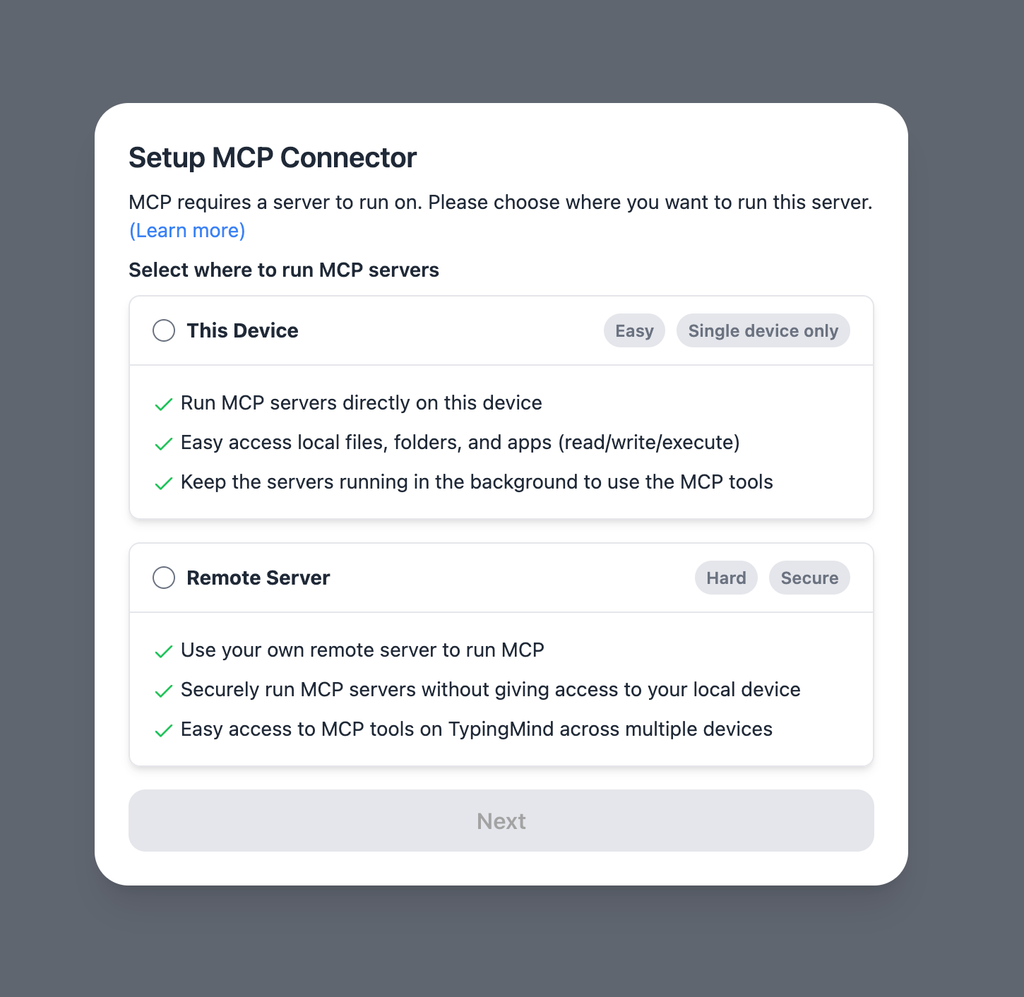
In TypingMind, go to Settings → Advanced Settings → Model Context Protocol to start setup your MCP connector. The MCP Connector acts as the bridge between TypingMind and the MCP servers.
MCP servers require a server to run on. TypingMind allows you to connect to the MCP servers via:
- Your own local device
- Or a private remote server.
If you choose to run the MCP servers on your device, run the command displayed on the screen.
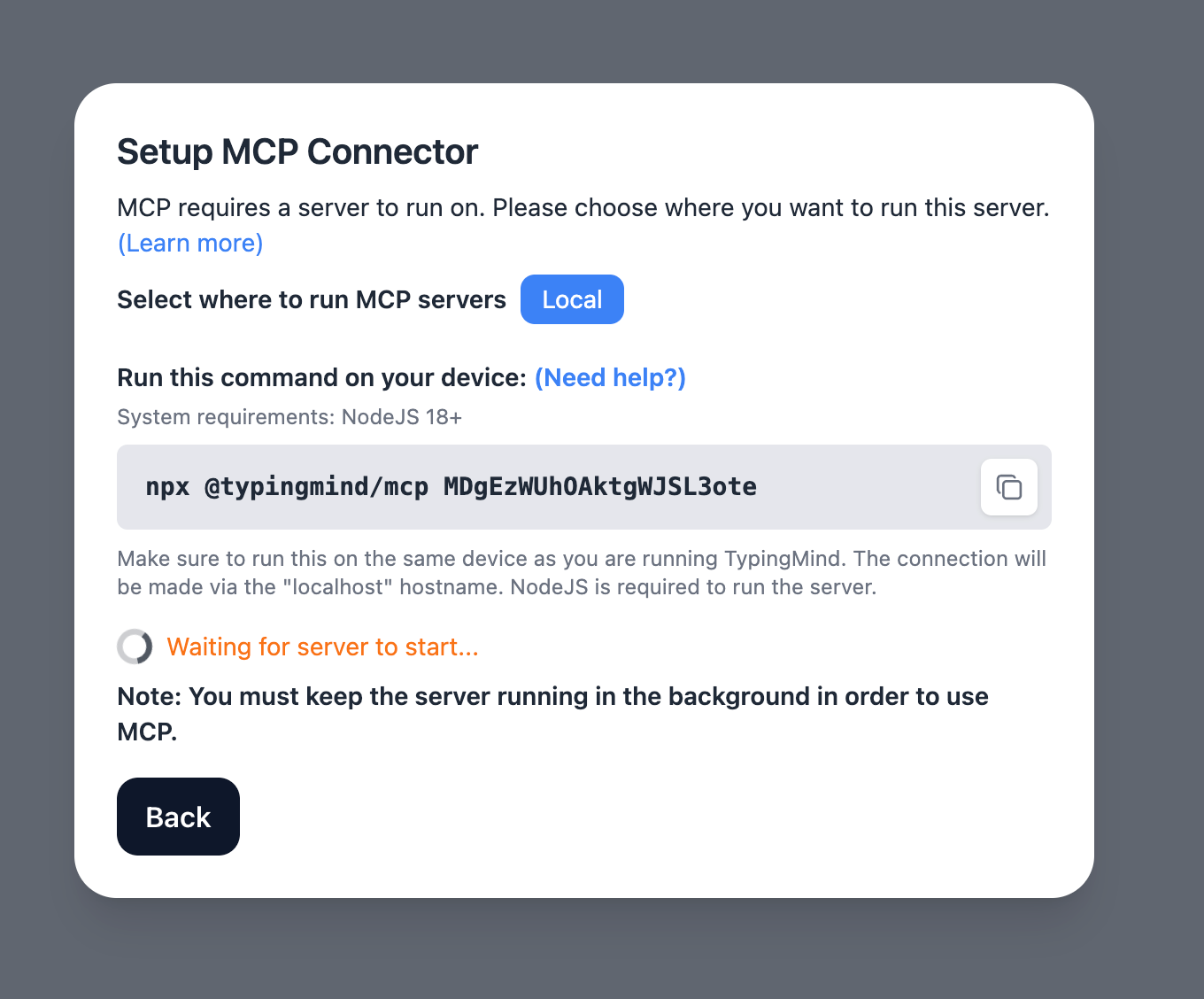
Detail setup can be found at https://docs.typingmind.com/model-context-protocol-in-typingmind
Step 2: Add the FileSystem MCP Server
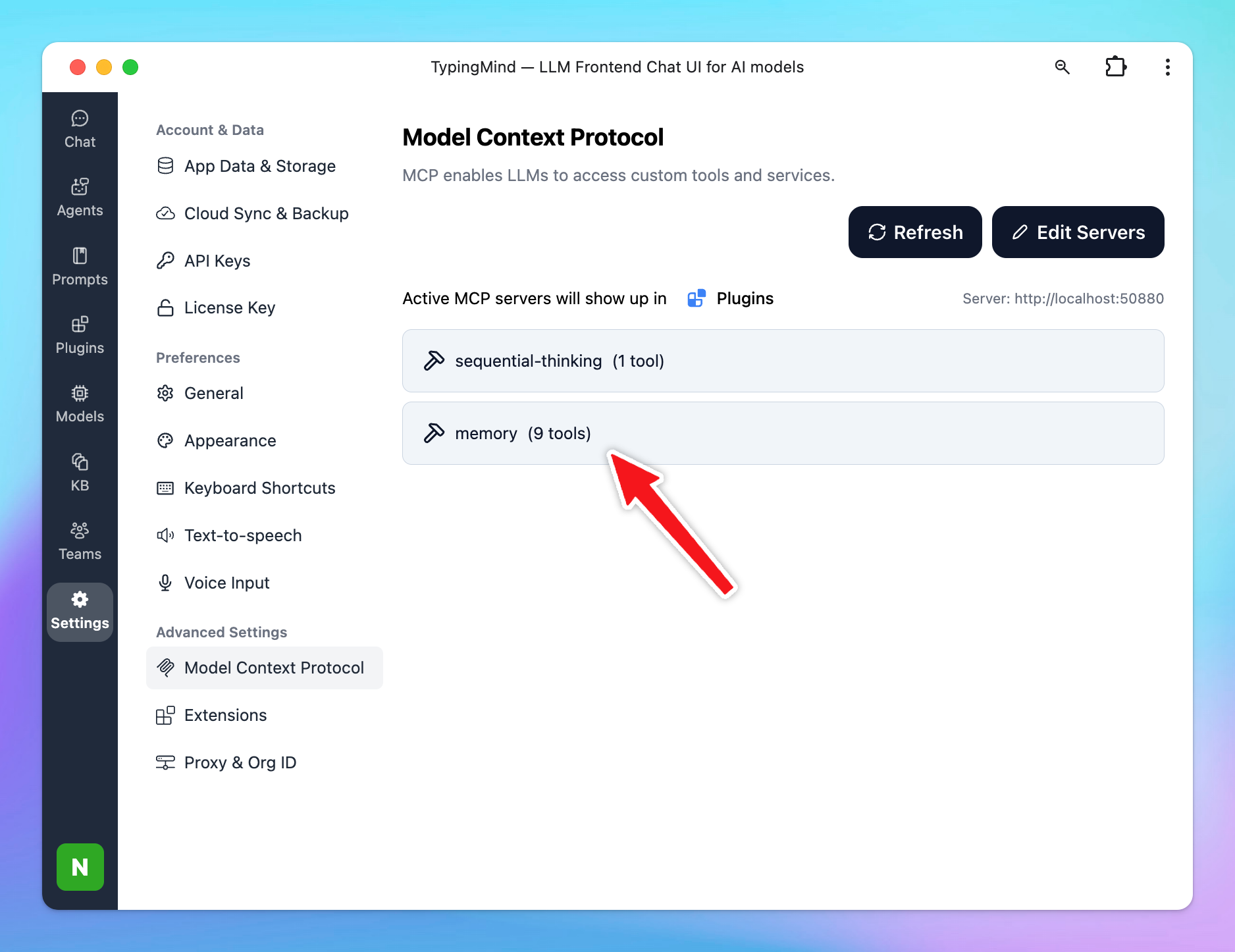
- Click on Edit Servers to add MCP server
- Add the following JSON to configure the Sequential Thinking MCP server:
{
  "mcpServers": {
    "memory": {
      "command": "npx",
      "args": [
        "-y",
        "@modelcontextprotocol/server-memory"
      ]
    }
  }
}
View more: Memory MCP Server
Step 3: Enable memory via Plugin section
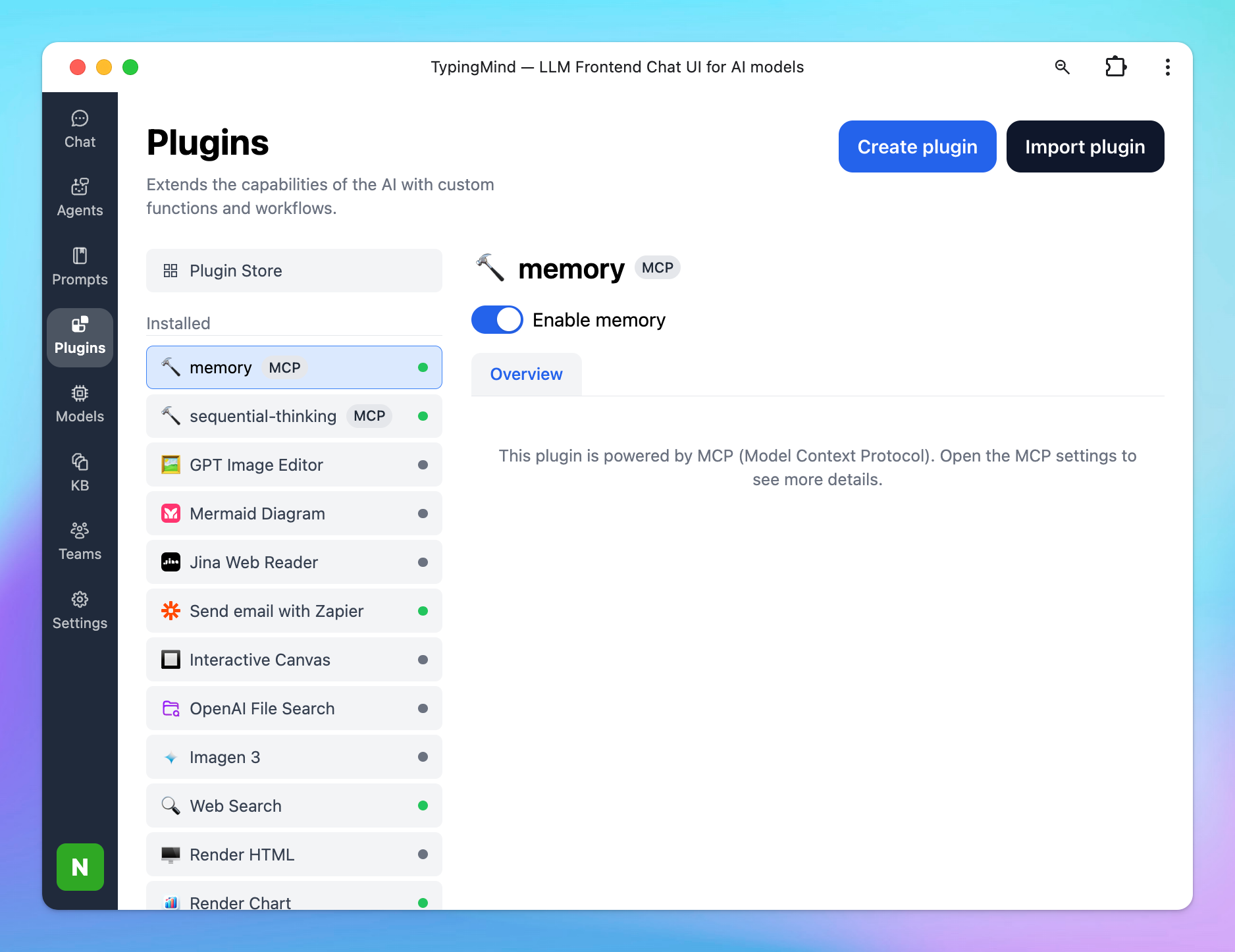
After the MCP servers are added successfully, it will show up in your Plugins page to be used like plugin. You can use the MCP tools directly or assign them to AI agent like other plugins.
- Go to the Plugins section in TypingMind.
- You should see a new plugin called “memory”.
- Enable the plugin
Step 4: Add system prompt to utilizing Memory
This prompt allows the AI automatically saves your conversation to memory and trigger memory whenever you start a conversation to provide relevant answers.
Go to Models —> Global Settings —> Add the below instructions to the Initial System Instructions:
1. Memory Retrieval:
At the beginning of each conversation, always trigger the "Memory" plugin to retrieve all relevant information from the user's memory.
Before responding, review the memory to determine whether any of it can support or inform your answer to the user's question.

2. Memory Update During Interaction:
While engaging in conversation, carefully observe for any new information related to the following categories:

a) Basic Identity: age, gender, location, job title, education level, etc.
b) Behaviors: interests, routines, habits, etc.
c) Preferences: communication style, preferred language, tools, etc.
d) Goals: personal or professional targets, ambitions, or desired outcomes.
e) Relationships: any personal or professional connections (up to three degrees of separation).

Trigger the "Memory" plugin to update memory as soon as new relevant information is identified.

Note: This is a personal workspace, so all memory retrievals and updates should be assumed to belong to a single individual.
Use Case for Memory MCP on TypingMind
Imagine:
You want your own AI assistant that remembers your notes, to-dos, favorite links, and even conversations—across devices and over months, not just in a single chat.
How this works with Memory MCP:
- Personal Journal: Your AI can keep a persistent log of your daily thoughts or reflections, synced to a private note-taking app or local database via MCP.
- Task Management: Log new tasks or mark old ones as complete, letting your AI “remember” what you still need to do.
- Contextual Reminders: The next time you ask, “What did I say about project X last week?”—your AI fetches precise notes or discussions from its memory, thanks to MCP.
- Learning and Preferences: The AI adapts to your routines, remembering your favorite resources, websites, or habitual replies, making suggestions more personal and relevant.
- Privacy and Control: Because MCP allows you to define exactly where and how your data is stored (even offline, locally), you stay in control—unlike with cloud-only AIs.


Getting the Most from AI Memory
Some tips to help you get the most of the Memory MCP on TypingMind:
- Be explicit about important information you want remembered
- Regularly review stored memories and update as needed
- Organize information into clear categories (personal, work, preferences)
- Test memory recall by asking your AI about past conversations
Final Thoughts
Setting up Memory MCP with TypingMind transforms your AI from a forgetful assistant into a knowledgeable partner that grows with you. The initial setup investment pays dividends in reduced repetition, better contextual responses, and truly personalized AI interactions.
Ready to give your AI perfect memory? Start with the setup guide above and experience the difference that persistent context makes in your AI interactions on TypingMind!


